Video Guide
Watch this video tutorial video to know how you can add and manage colleague in your practice account.
As a bookkeeper or accountant, managing multiple clients simultaneously can be overwhelming and mentally exhausting. However, having a reliable bookkeeping tool that streamlines routine tasks and strengthens client collaboration can transform the way you work, helping you stay organized, efficient, and in control.
Akrio is an automated bookkeeping tool designed to give you peace of mind by taking the hassle out of manual bookkeeping. To help streamline workflows and improve collaboration, Akrio allows you to add as many colleagues as needed to your practice account.
Follow this quick guide to learn how to add colleagues to your practice account.
How to Add and Manage Colleagues in Akrio
Running a bookkeeping or accounting practice is rarely a one-person job. As your client base grows, so does the need to bring colleagues into your workflow. But giving team members access to client data often comes with concerns about permissions, security, communication, and maintaining control over who can see what.
That’s where Akrio makes things simple.
Instead of juggling spreadsheets, sharing passwords, or manually coordinating access, Akrio gives practice owners complete control over their team from one centralized workspace. Whether you’re adding a new bookkeeper, assigning an expense approver, or managing client-specific access, everything can be handled in just a few clicks.
Adding a New Colleague to Your Team
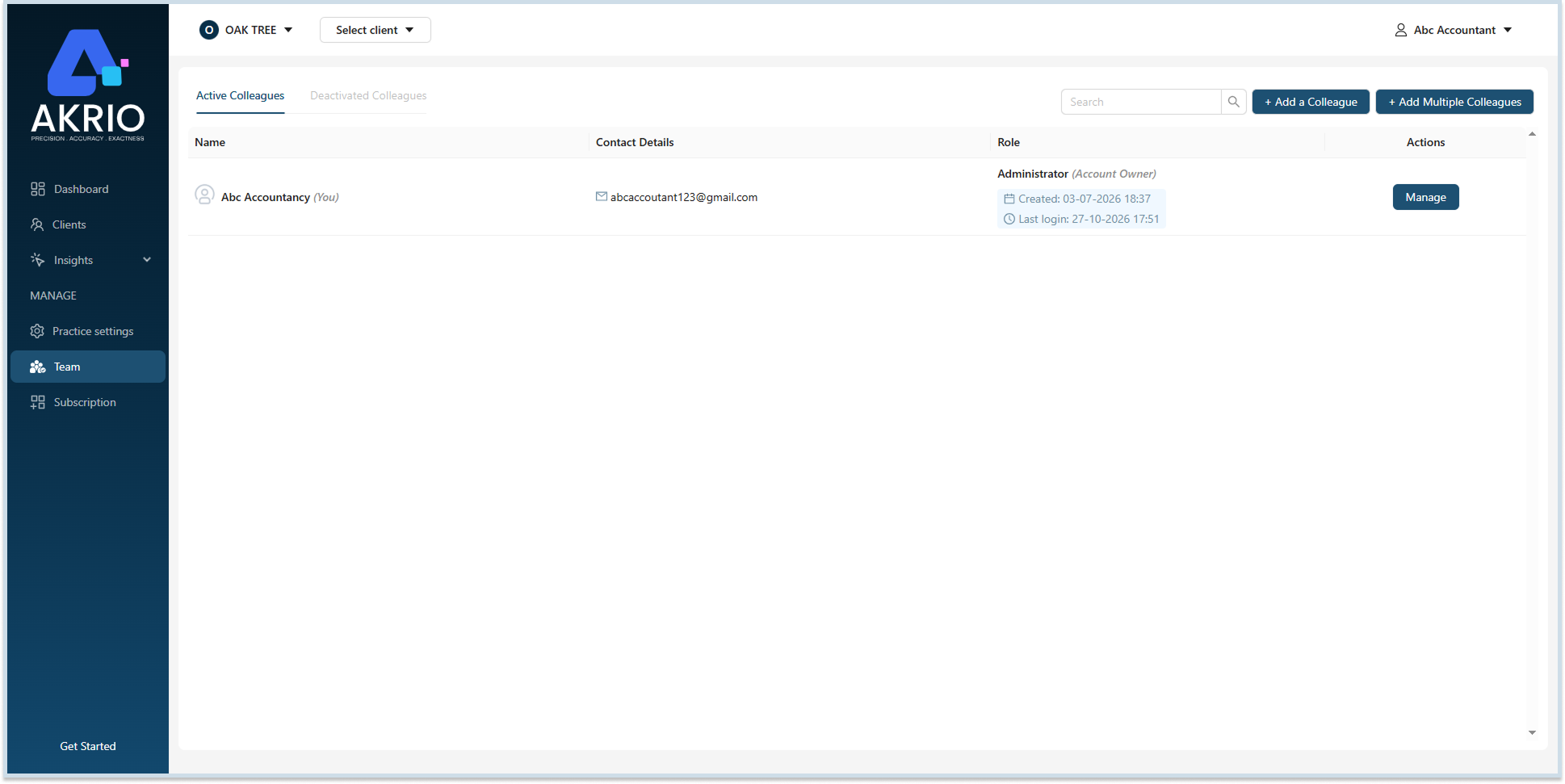
To get started, navigate to the Manage section from the sidebar and select Team.
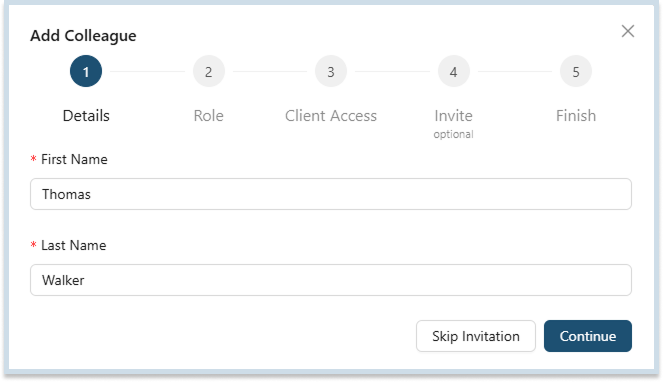
Click Add a Colleague and enter the required details for your new team member.
If you’re still setting up the account and don’t want to send an invitation immediately, simply select Skip Invitation. This allows you to add the colleague to your practice without notifying them straight away.
If you’re ready for them to join, click Continue to proceed with the invitation process.
This flexibility is particularly useful for growing firms that prefer to prepare user accounts in advance before onboarding new team members.
Assigning the Right Role and Permissions
Not everyone on your team requires the same level of access.
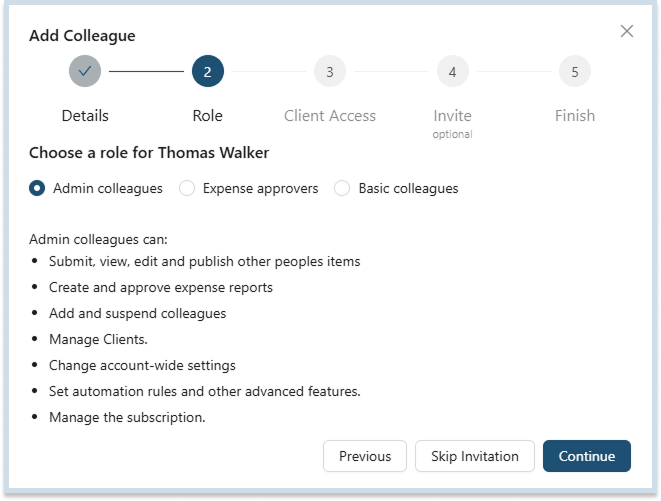
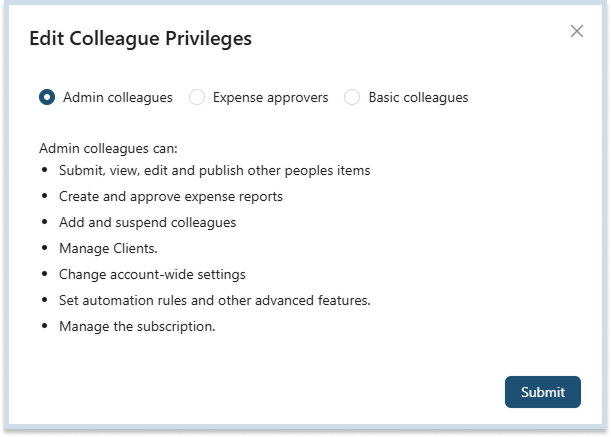
Akrio helps you maintain security and accountability by allowing you to assign roles that match each colleague’s responsibilities.
Choose from:
- Admin
- Expense Approver
- Basic User
Once you’ve selected the appropriate role, click Continue.
This structured permission system helps reduce the risk of accidental changes while ensuring each team member has access to the tools they need to perform their job effectively.
Managing Client Access
One of the biggest challenges for practice owners is controlling which staff members can access specific client information.
With Akrio, you remain in complete control.
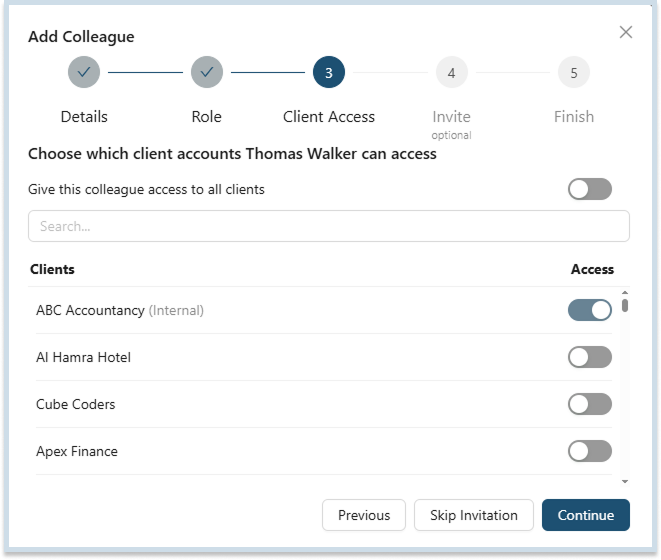
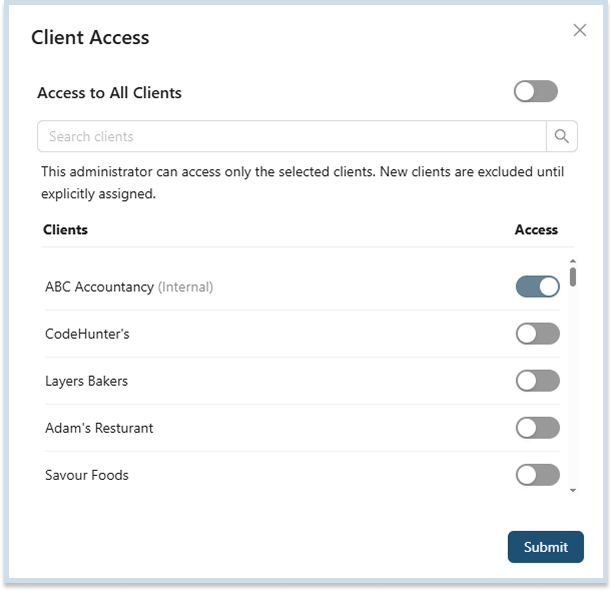
You can choose to grant a colleague access to all clients by enabling the toggle switch. Alternatively, you can limit access by manually selecting specific clients.
This means your team sees only the information relevant to their responsibilities, helping maintain confidentiality while keeping workflows organized.
After making your selection, click Continue to move forward.
Sending Invitations with Confidence
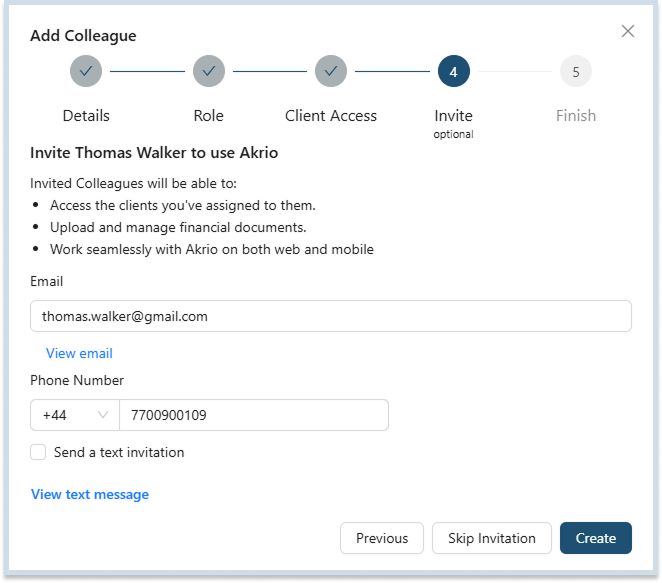
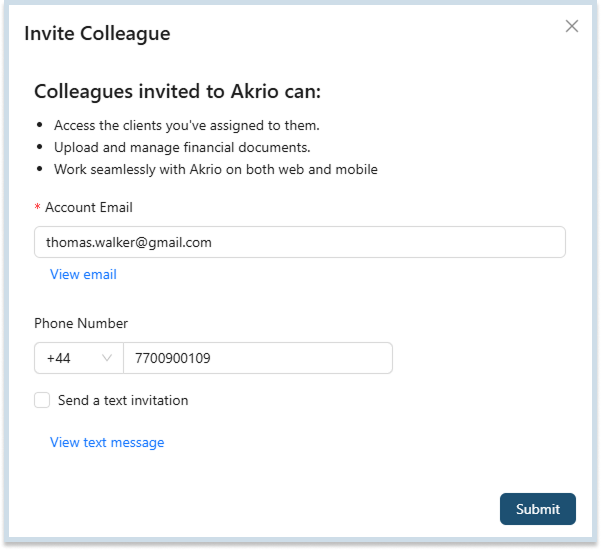
Akrio allows you to invite colleagues via email, SMS, or both.
Simply enter their contact details and choose how you’d like them to receive the invitation.
Before sending, you also have the option to preview exactly what your colleague will receive by selecting View Email or View Text Message.
This added transparency helps ensure your communication is professional, accurate, and ready to send, giving both you and your team greater confidence during onboarding.
If you don’t wish to send the invitation immediately, select Skip Invitation and complete the colleague setup without notifying them.
Once you’re happy with the setup, click Create.
Editing Colleague Information
As your practice evolves, team responsibilities often change.
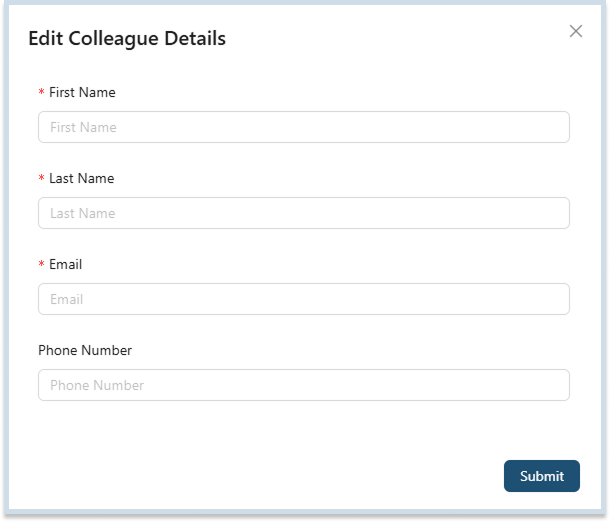
Akrio makes it easy to update colleague information whenever required.
Simply locate the colleague and click the Manage button beside their profile.
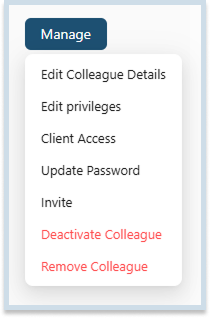
From here, you can modify their details and save the updates by clicking Submit.
No complicated administration processes. No unnecessary delays. Just quick and straightforward team management.
Updating User Roles
Need to promote an employee or adjust their responsibilities?
Select Edit Privileges to assign a different role to your colleague.
Whether you’re transitioning someone from a basic user to an administrator or changing approval responsibilities, Akrio allows you to make adjustments instantly without disrupting ongoing work.
Adjusting Client Access
Client assignments constantly change as workloads shift across teams.
By selecting Client Access, you can update who has access to which clients at any time.
Grant access to all clients or choose only those relevant to a colleague’s role. This ensures your practice remains organised while maintaining strong data governance.
Updating Passwords
Security matters when managing sensitive financial information.
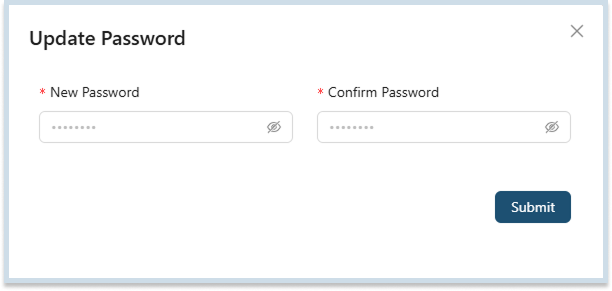
If a password needs to be changed, click Update Password from the management options.
A password update window will appear where you can enter the new credentials. Once completed, click Submit to save the changes.
Keeping account access secure takes only a few moments.
Resending Invitations
Sometimes colleagues miss an invitation email or simply forget to accept it.
If that happens, there’s no need to create a new account.
Click Manage, select Invite, verify the contact details, and resend the invitation. Your colleague will receive a fresh invitation to join your Akrio practice account.
Deactivating a Colleague
When a team member leaves your practice or no longer requires access, you can deactivate their account without permanently removing their information.
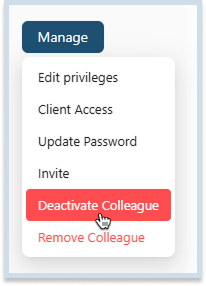
Select Deactivate Colleague, and they will be removed from your active team while remaining visible in the deactivated colleagues section for future reference.
This provides greater control and preserves historical records when needed.
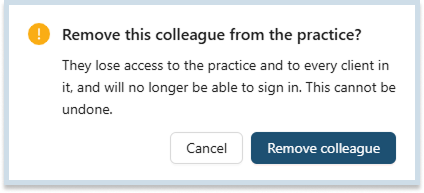
Removing a Colleague
If you need to permanently remove a colleague from your practice, Akrio makes the process straightforward.
Click Manage, select Remove Colleague, and confirm the action when prompted.
Choose Remove from Client to complete the process.
The colleague will no longer have access to your Akrio practice account.
Team Management Without the Administrative Headache
For many bookkeeping and accounting practices, managing multiple team members can become just as demanding as managing clients.
Akrio removes that complexity.
With flexible permission controls, client-level access management, simple onboarding tools, and centralized colleague administration, Akrio helps practices scale their teams with confidence while maintaining complete oversight of client data.
Was this article helpful?

Sad

Happy