Video Guide
Follow this video tutorial guide to see how to publish costs and sales credit notes from Akrio to Xero.
If your sales or cost invoices have credit, refund, or negative amounts, you can publish them to Xero with such types.
You can use the ‘Item details’ page to set the “type” to Credit Note, Refund or Sales Credit Note
To publish credit Notes:
- Go to the Sales or Cost ‘Item details’ page.
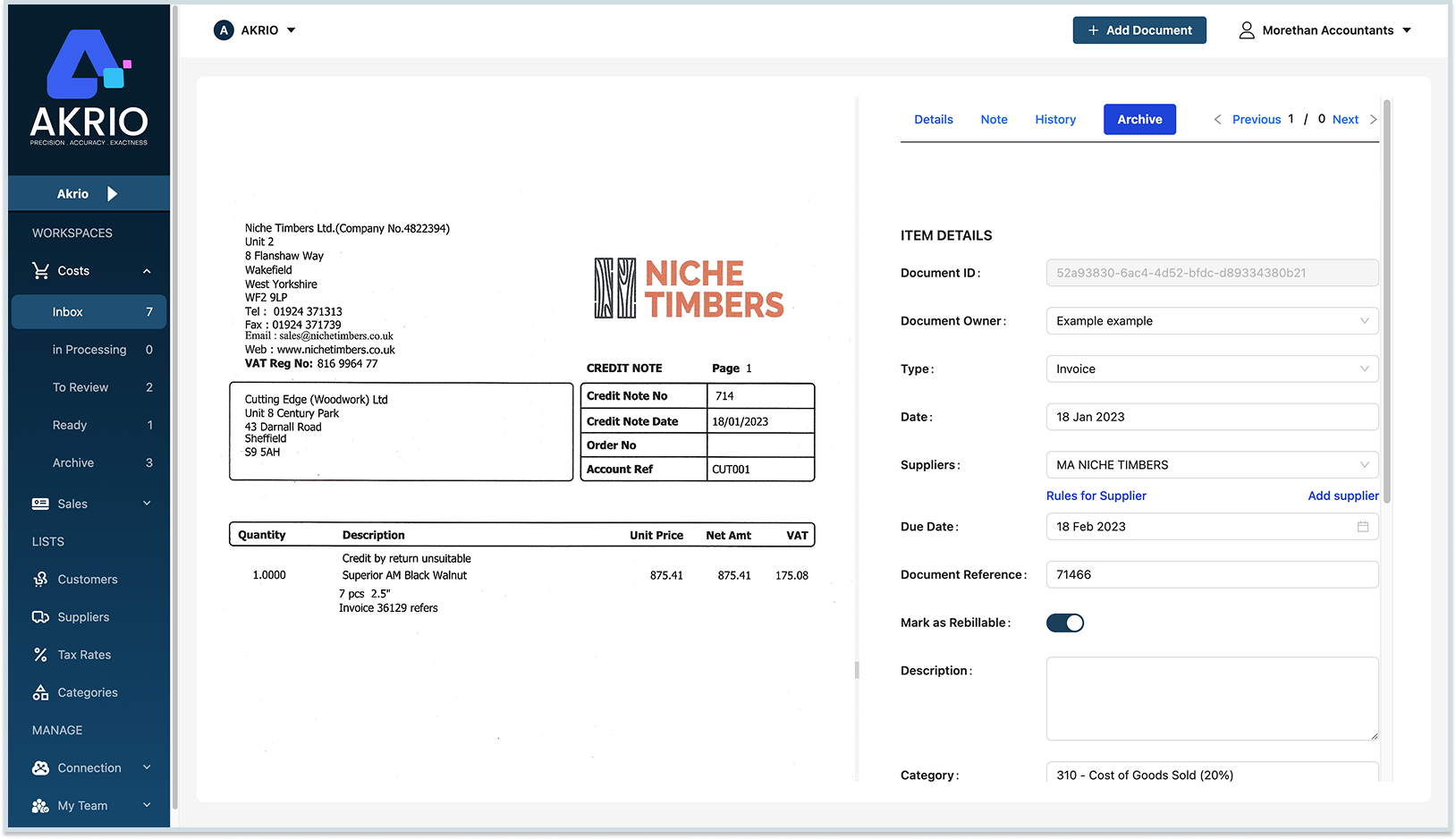
Note: See if the ‘type’ is set to ‘Credit Note/Refund’ or ‘Sales Credit Note’. If not:
- Use the drop-down button to set it to ‘Credit Note/Refund’ or ‘Sales Credit Note’ manually.
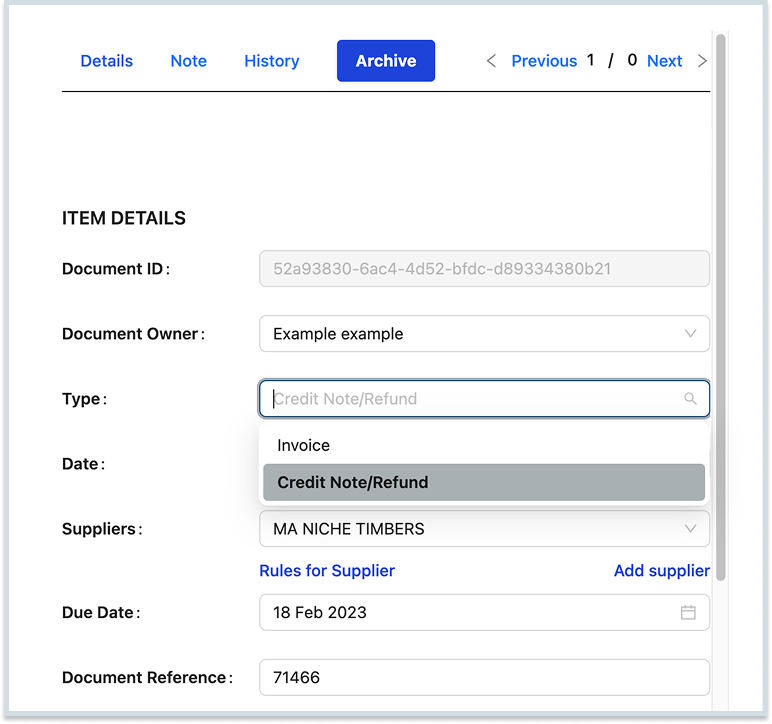
This way, all values and the total amount will be negative.
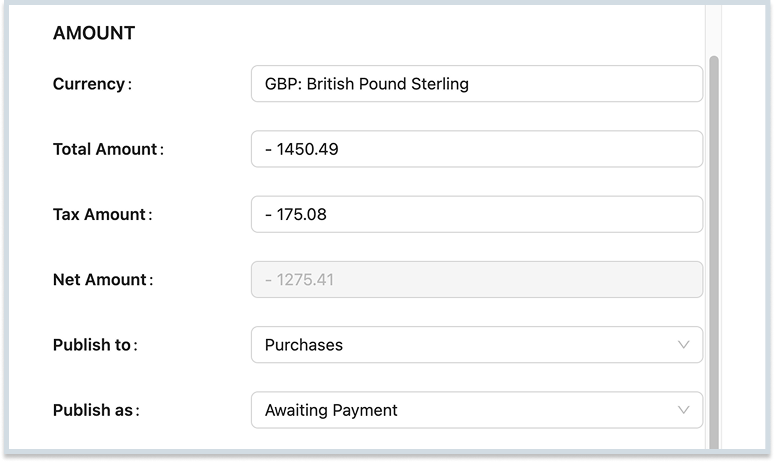
- Click the ‘Publish’ button.

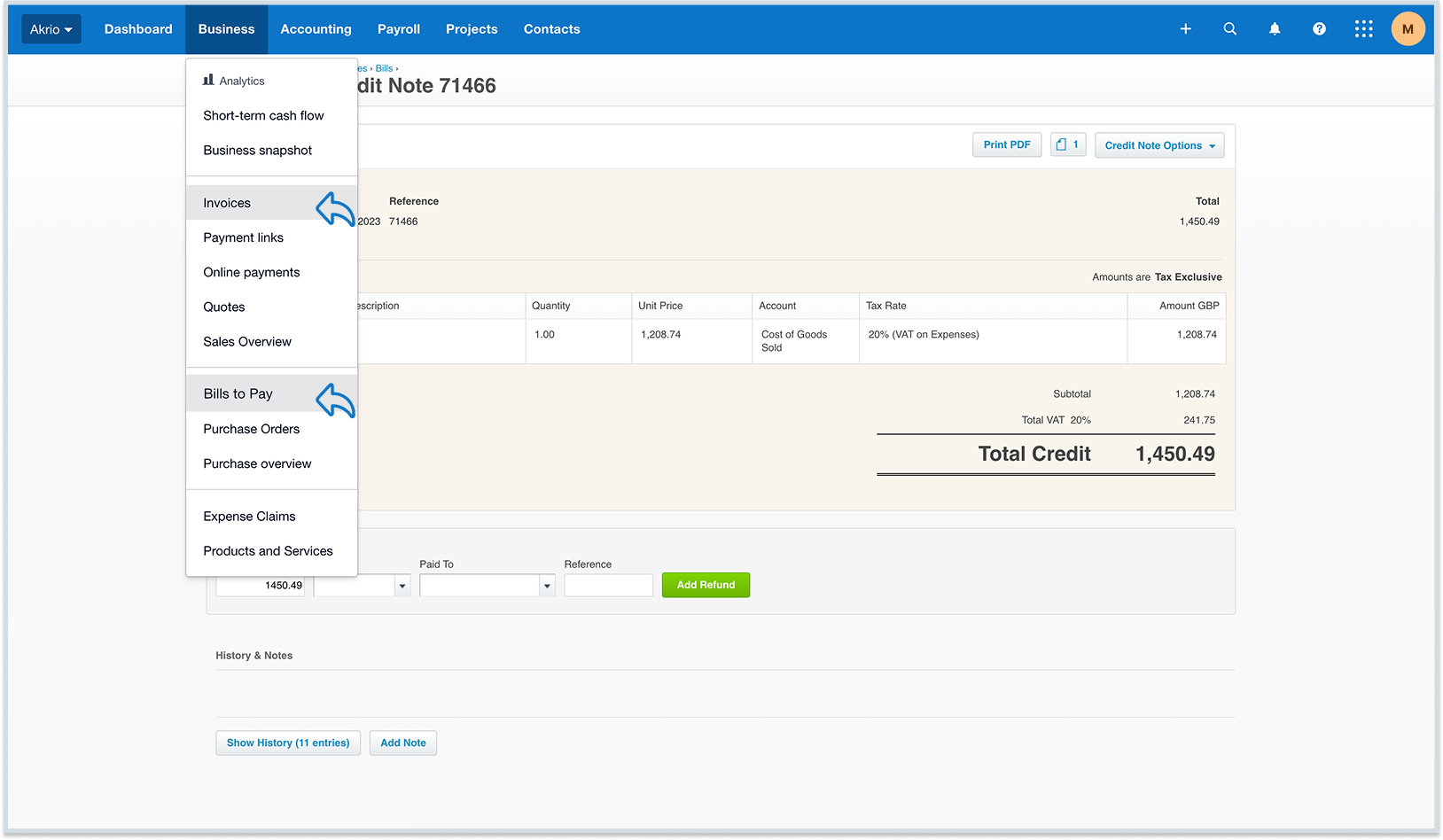
Now your invoice will be sent to Xero and will show credit in brackets.
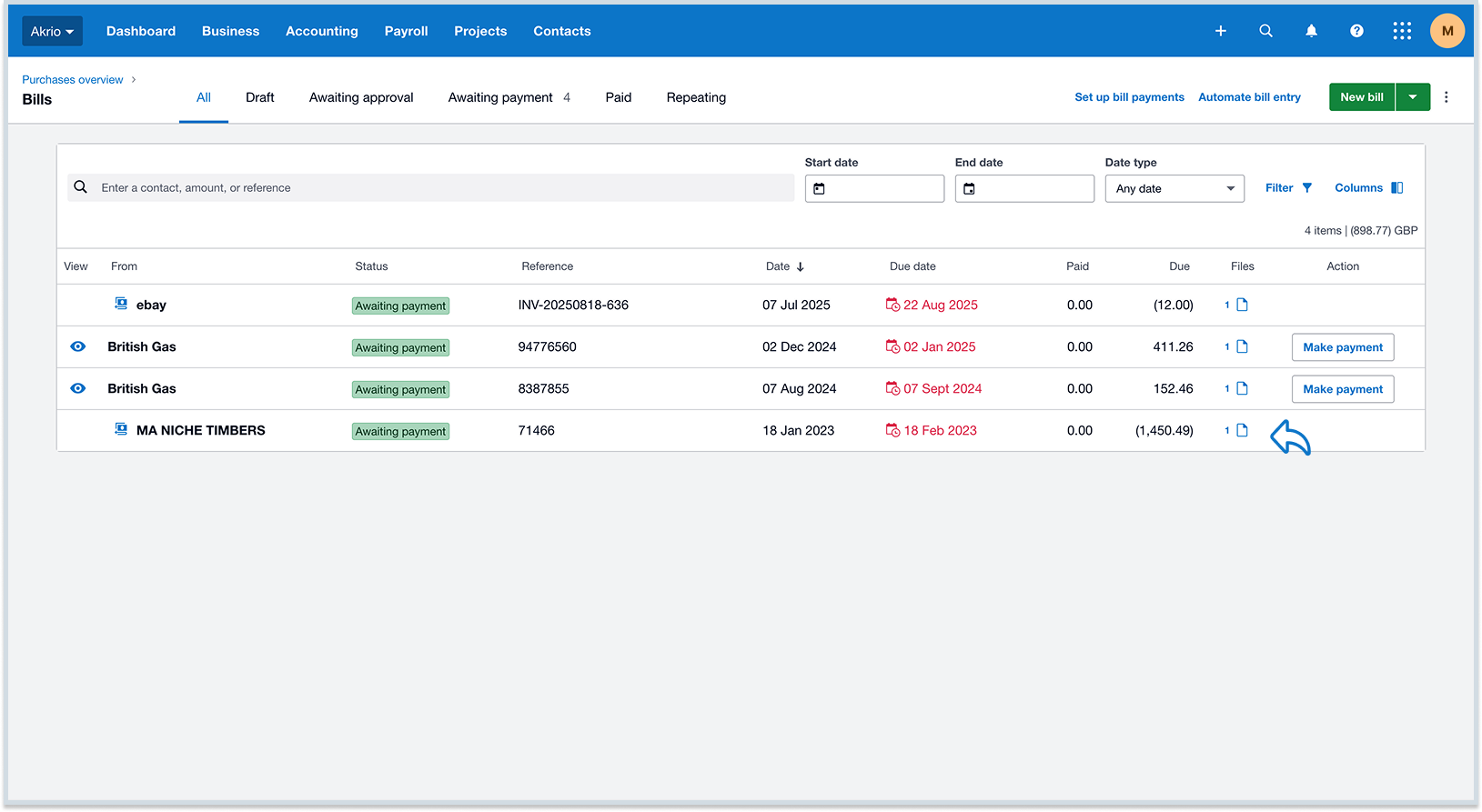
You can find your costs credit notes in the ‘Bills to Pay’ section and your sales credit notes in the ‘Invoices’ section.
Was this helpful?
Thanks for your feedback!