Video Guide
Follow this video tutorial guide to see Tax Rate Publishing from Xero to Akrio.
When you publish an item to Xero, Akrio will send the Tax value and Tax rate that were extracted from the submitted item.
You can specify how Akrio manages the display and publishing of tax information to ensure that items are published accurately and in alignment with your business requirements.
You can select:
- Decided by Xero
- Decided by Akrio
To change the tax settings:
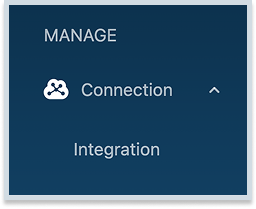
- Go to ‘Integration’ Under ‘Connections’ section on the side-bar menu.
2. In the Xero settings page, under the Tax setting section, select from the ‘Publishing tax data’ dropdown.
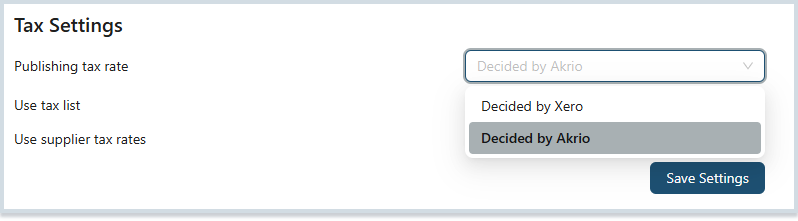
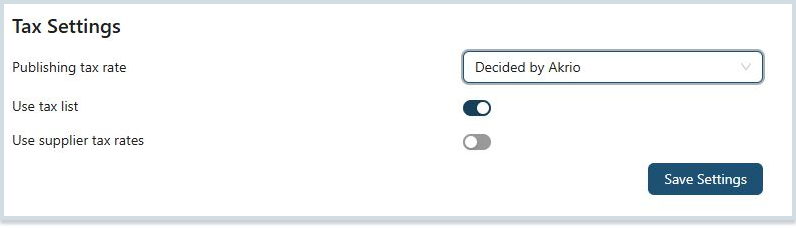
1.Decided by Akrio
- When selecting Decided by Akrio, ensure that the tax list is enabled.
2. You can then select the relevant tax from the dropdown in the Taxes field on an item’s details page.
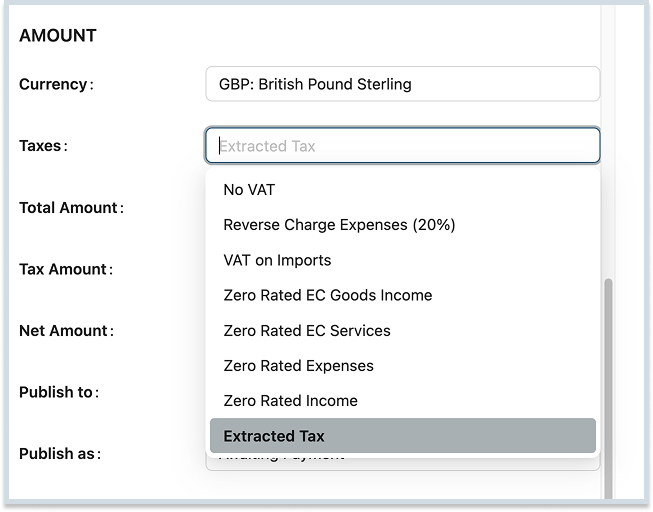
Now the software will always extract the tax value from the item. After publishing, the tax rate selected by you will consistently be displayed in Xero.
2.Decided by Xero:
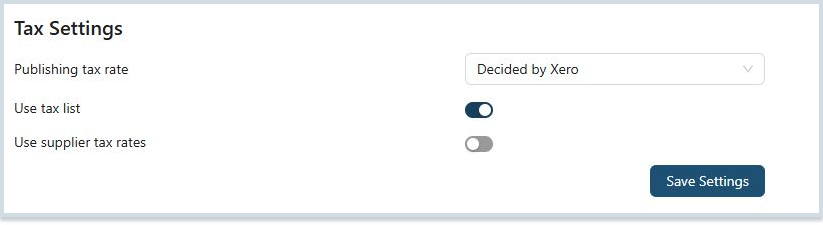
The tax value will be extracted from the item, but when published, Xero will overwrite this value and recalculate the tax based on the tax rate assigned to the selected category.