Video Guide
Follow this video tutorial guide to see how to submit items via email.
Akrio creates Email addresses for each account.
Each Akrio account and user is assigned two unique email addresses – one for Costs and one for Sales.
To submit documents via email, simply send your costs or sales documents to the corresponding Akrio email address.
To add your expense and income invoices through email:
- Click the ‘Add Document’ button on the right side of the screen.

- You can find the costs and sales email in the Costs and Sales tab, respectively.
Submit Costs Items Via Email:
1. Go to the Costs tab of the +Add Document panel to send your costs documents.
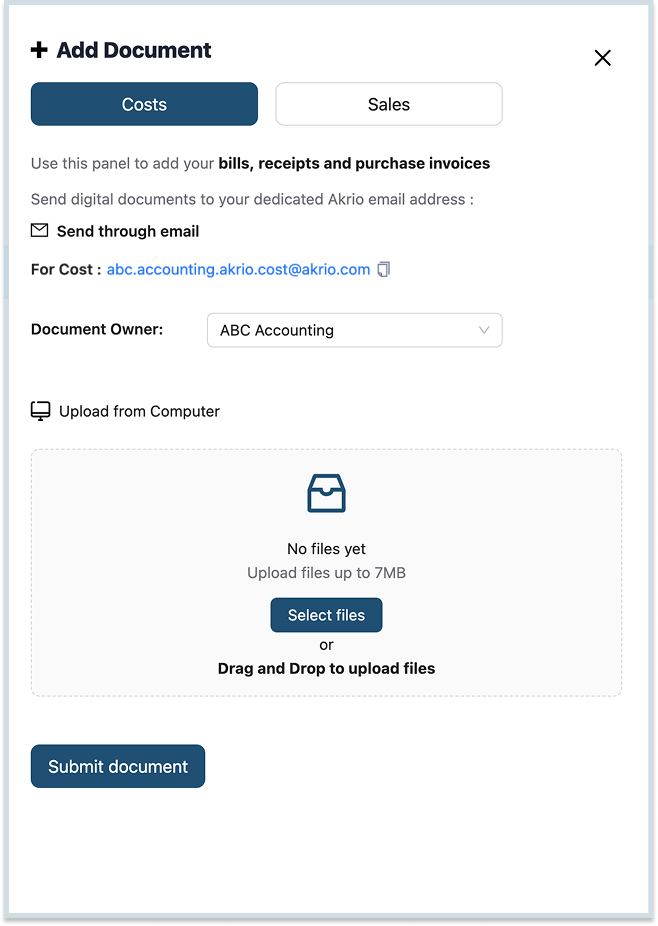
- In the “Send through email” section, Copy the email

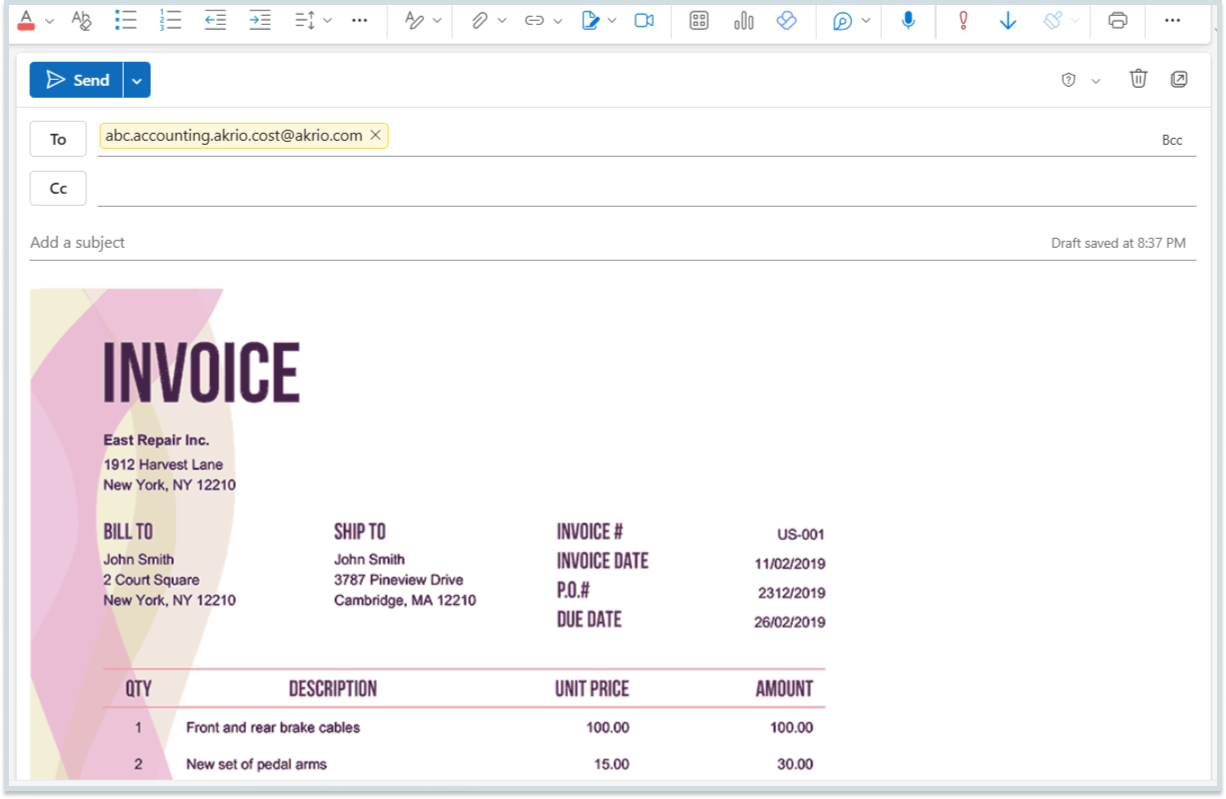
- Compose an email, paste the copied email, attach the costs documents you want to upload and send.
Submit Sales Items Via Email:
- Similarly, go to the Sales tab of the +Add Document panel to send your sales documents.
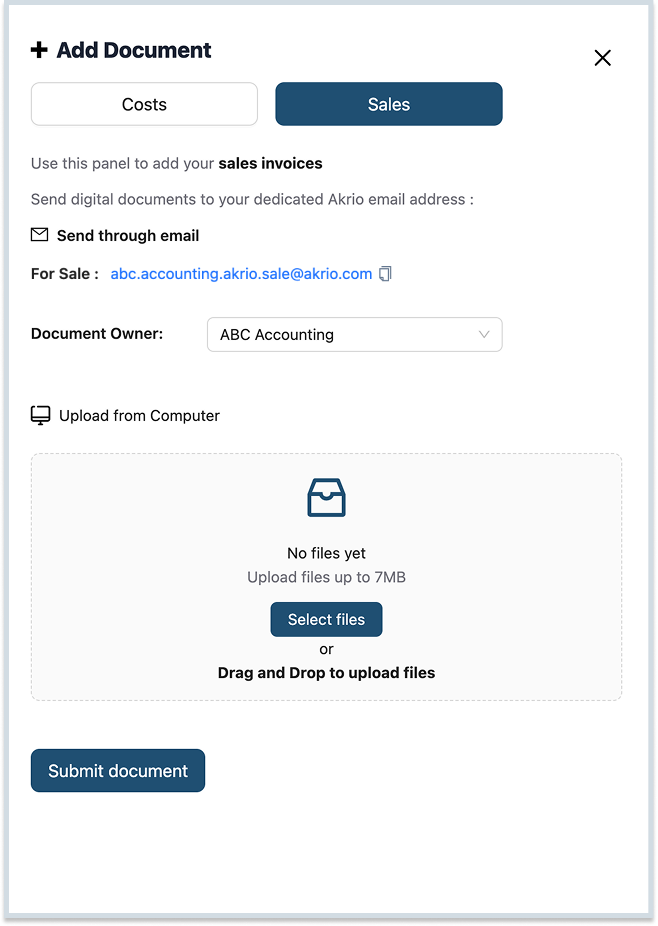
- In the “Send through email” section, Copy the email

- Compose an email, paste the copied email, attach the sales documents you want to upload and send.
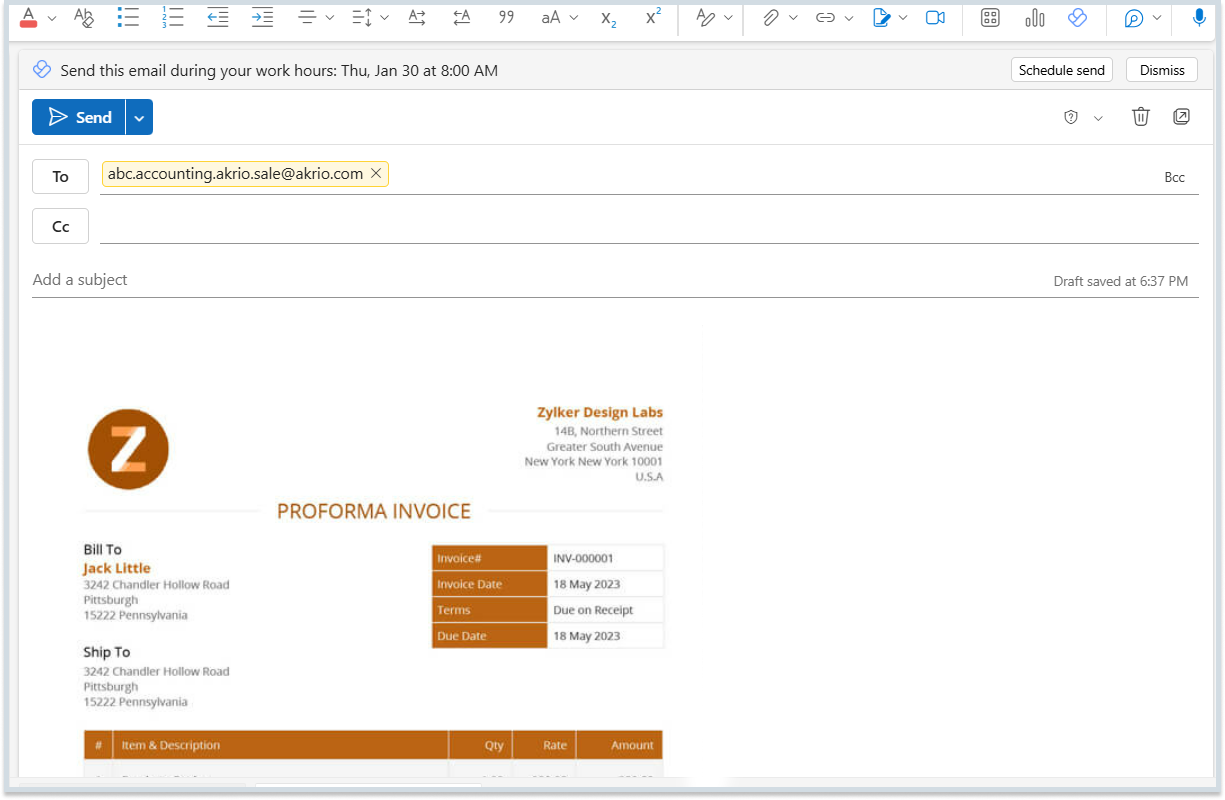
Note: When you email your costs or sales documents to the appropriate Akrio Email address, then after extraction the item will appear in your costs or sales inbox respectively.
Was this helpful?
Thanks for your feedback!