Video Guide
Follow this video tutorial guide to see how to view, edit, and publish an item.
Follow these steps to view, edit, and publish your items in Akrio. Before publishing an item, ensure that you integrate with Xero and configure the correct tax settings and categories. This will ensure that the item is published correctly, with accurate information.
View and Edit Your Items in Akrio
View Your Items
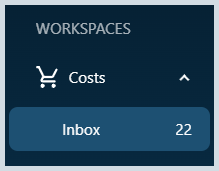
- Go to the Costs or Sales inbox.
2. Click on any item to open and view the details of the purchase or sale.
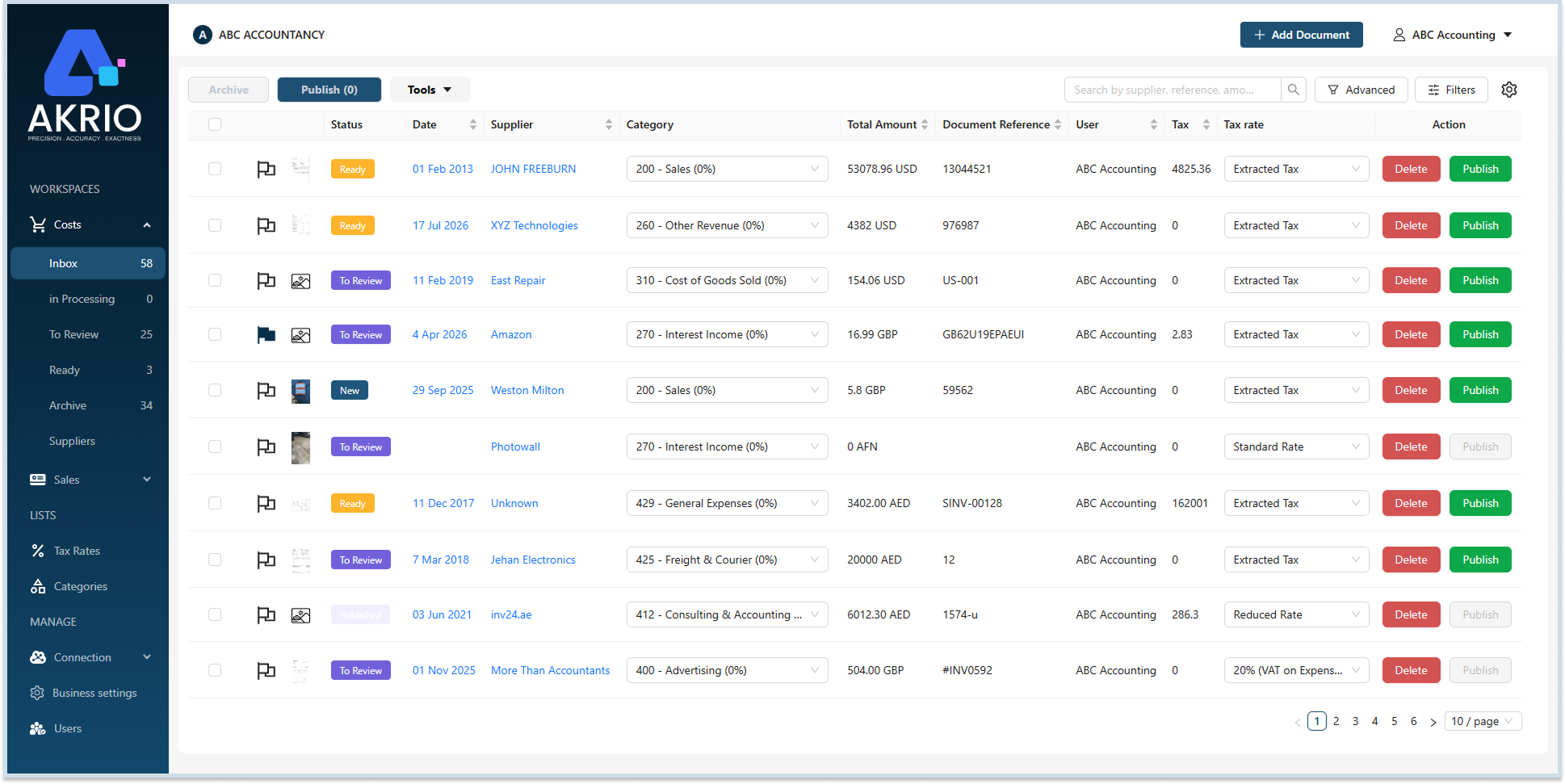
Edit Your Item
After clicking the item, you can edit its details.
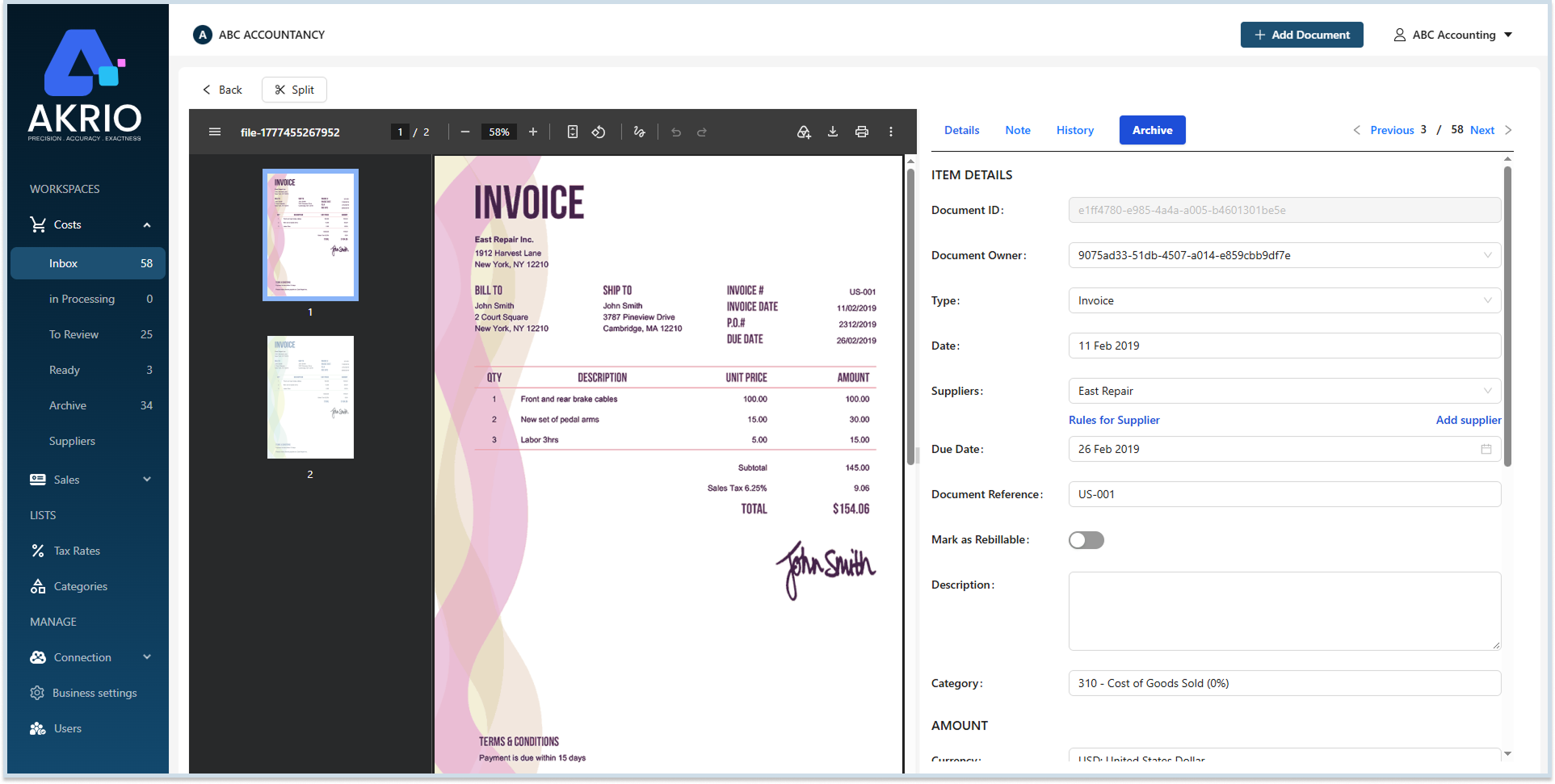
- You’ll be able to update fields such as:
- Taxes
- Total amount
- Tax amount
- Other editable details
- Simply make the necessary changes within the editable fields available on the panel.
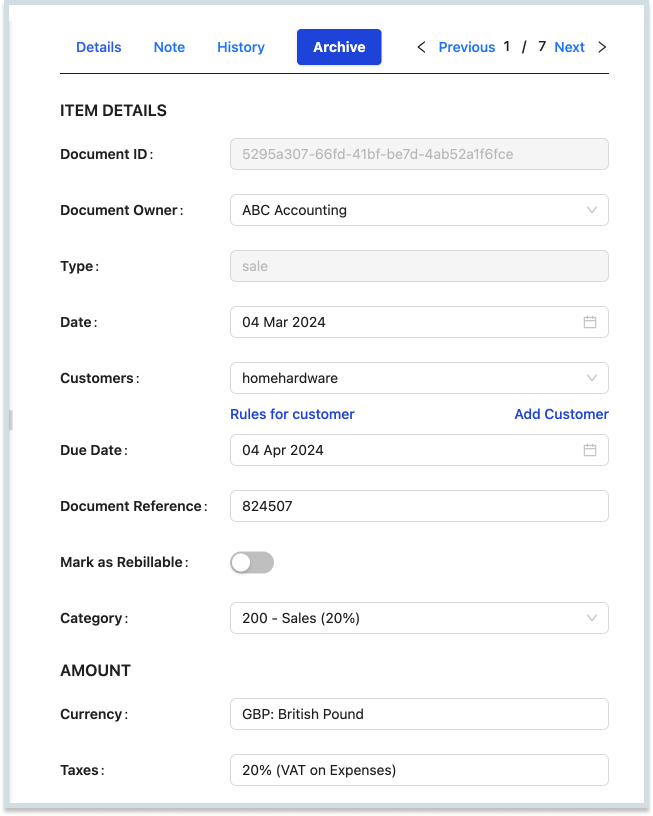
- On the item details page, you can write notes in the Note tab.
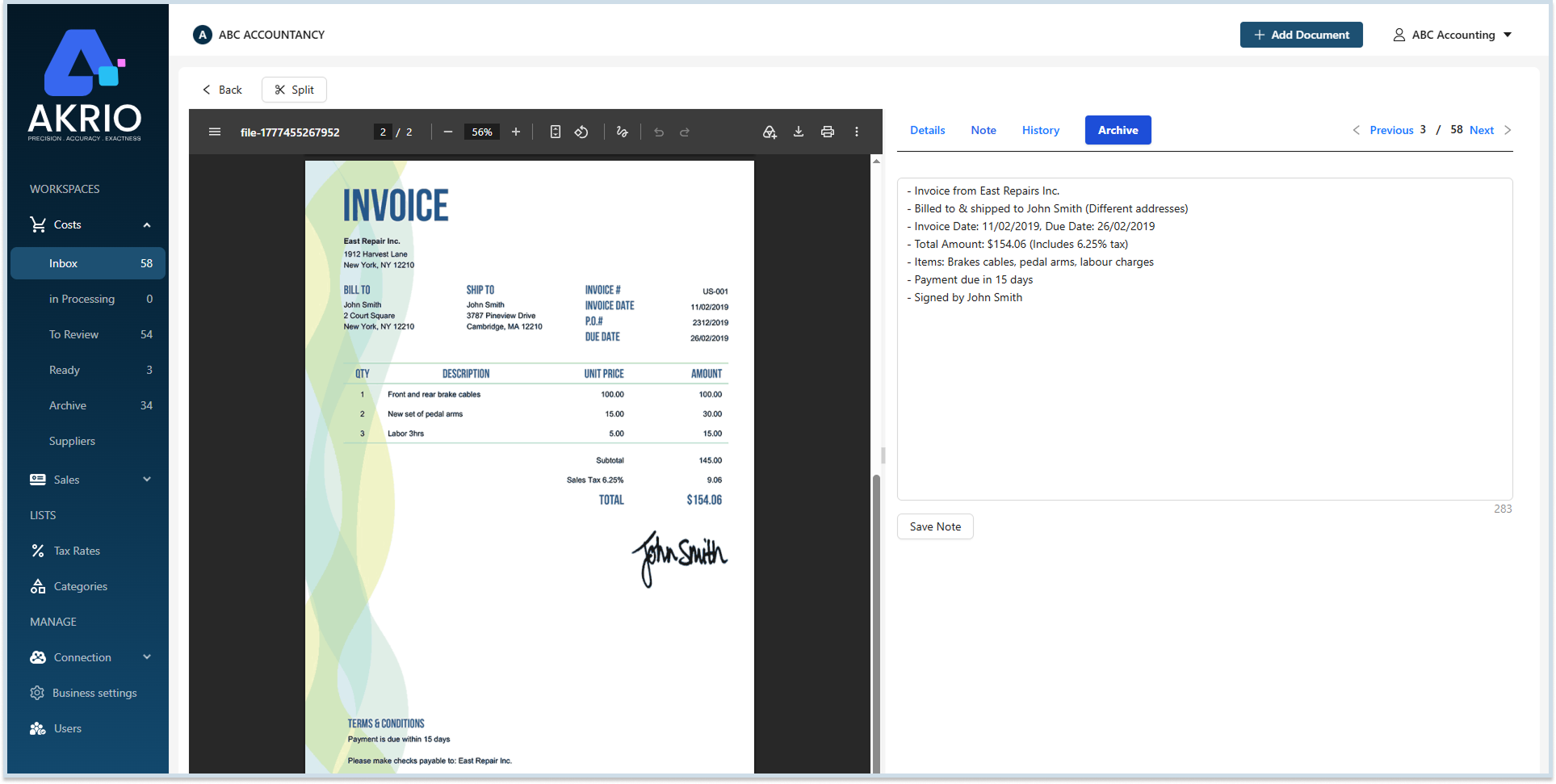
Note: You can toggle through items using the Next and Previous buttons at the top.
- To view your item’s history, click the History tab.
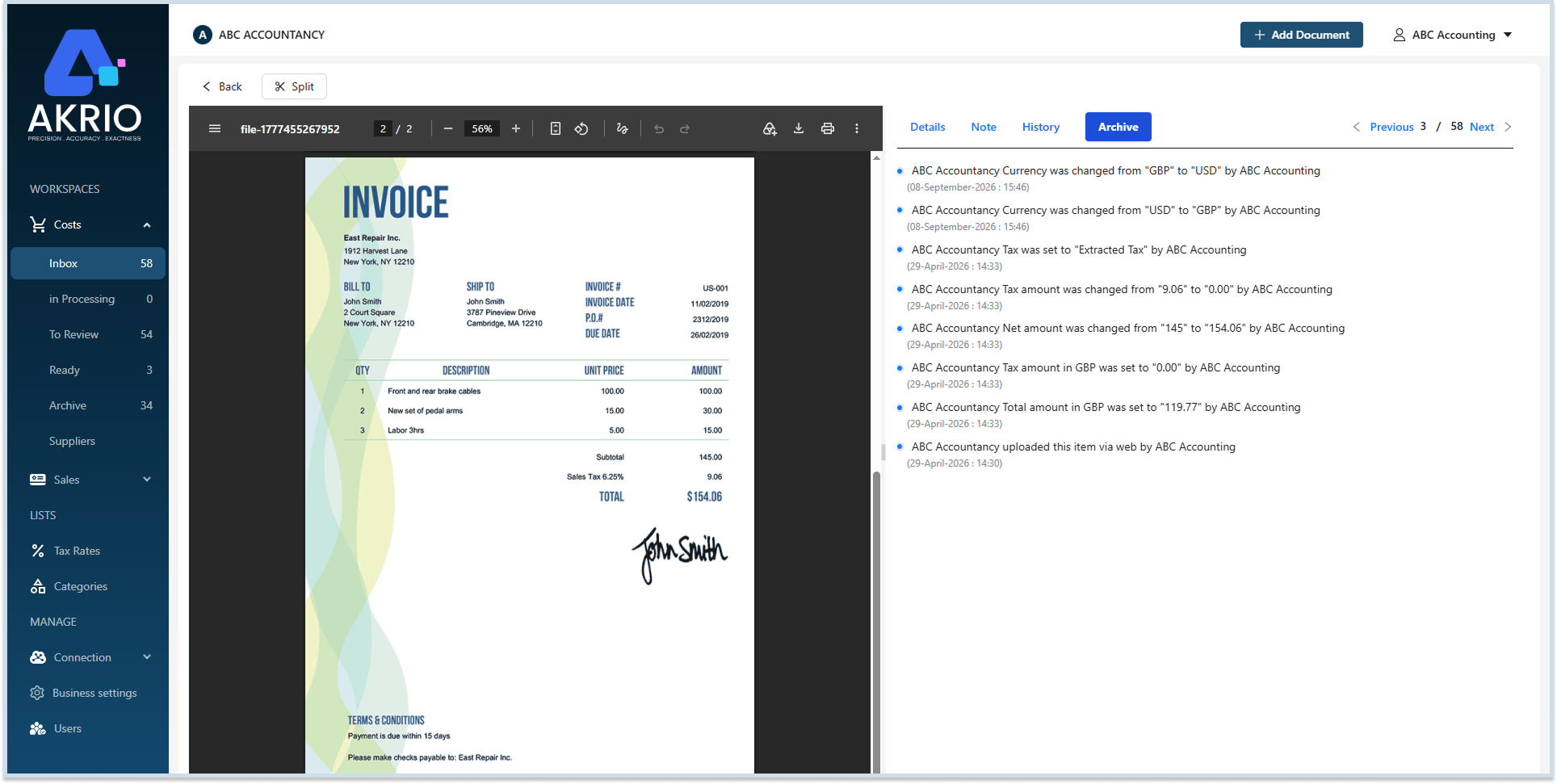
Publishing an Item
- Navigate to the Inbox tab from the Dashboard panel.
- Select the Item for Publishing by clicking on it.
- The Item’s Detail page is displayed.
- Select the Item’s Category to which your item belongs, whether is it sales, revenue, wage, etc.
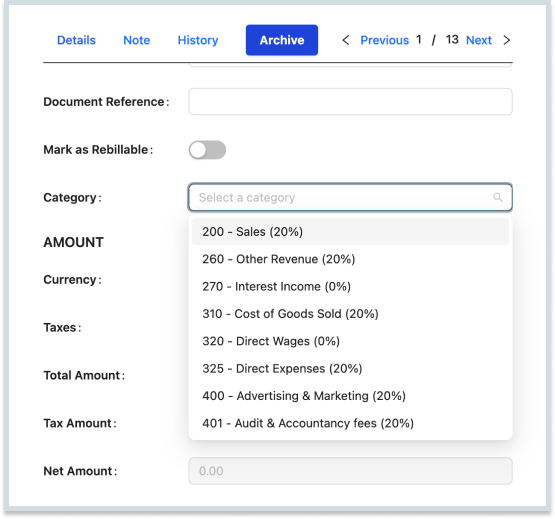
- Set the Appropriate Total Amount, Tax Amount, and Currency according to your business.
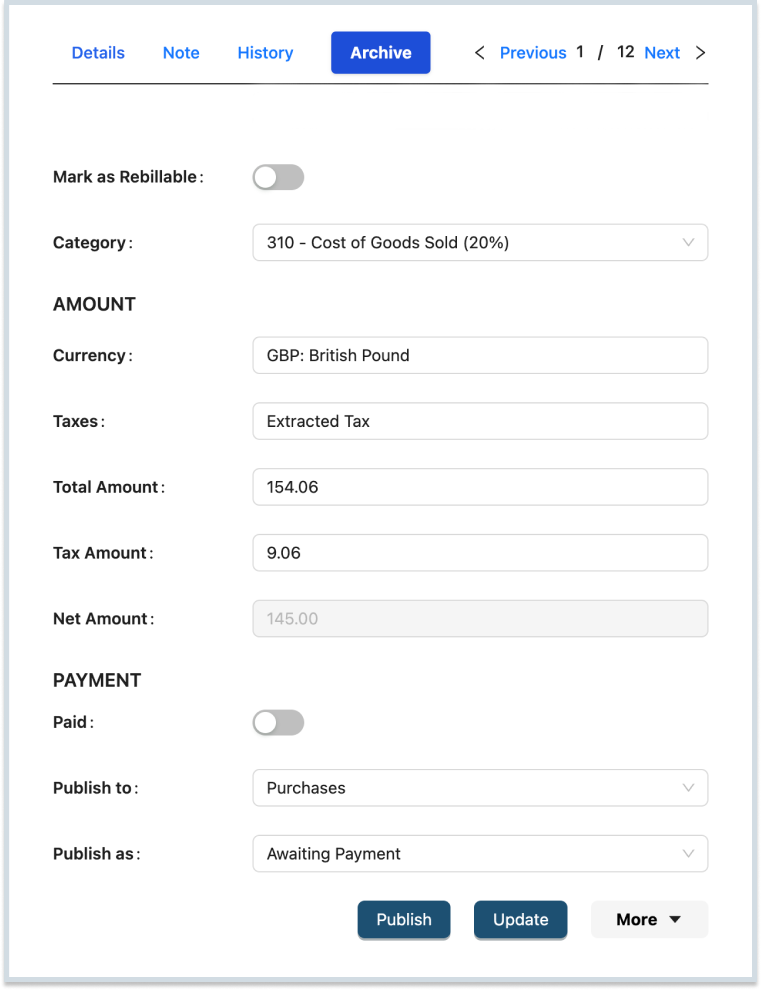
- Once you set all the tax and payment details, click Publish.
7. After you publish the item, you can find it in the archive
Note: When an item is published, all the records will be sent to the integrated accounting software.
Was this helpful?
Thanks for your feedback!