Video Guide
Follow this video tutorial guide to see how you can integrate your Zoho books accounting software with Akrio.
What Does Integration Do?
Connecting Akrio to Zoho Books allows you to sync items and their details directly to your accounting software.
Integrating Akrio with Zoho Books will:
- Synchronise key data across both systems, such as the Chart of Accounts, Suppliers, Customers, and Taxes.
- Enable the ‘Publish’ function to send your Akrio items directly into Zoho Books for streamlined and accurate financial management.
Setting up the Connection
- Go to the Connection tab in the sidebar and select Integration.
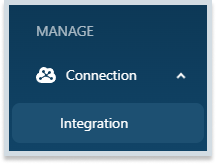
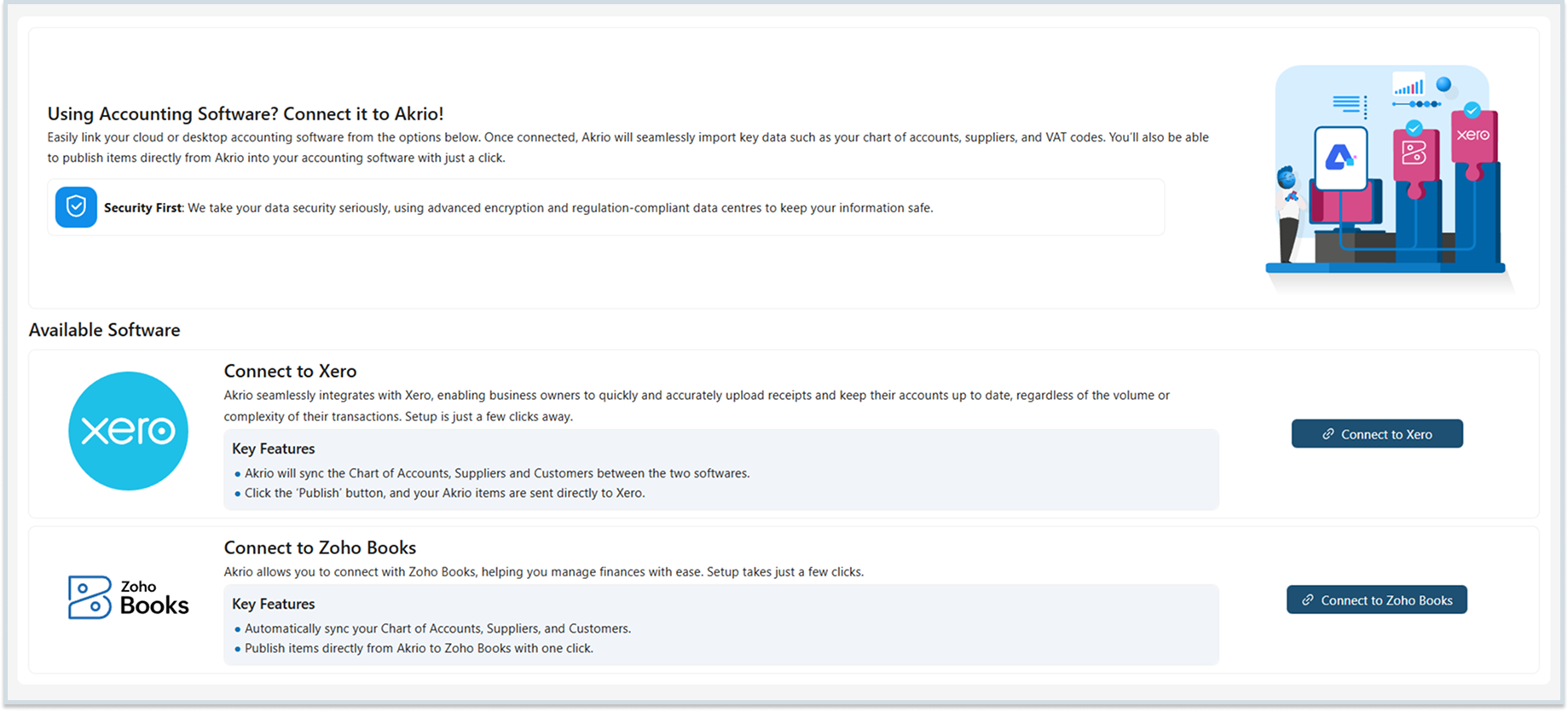
- Locate Zoho Books in the available software options and click the “Connect to Zoho Books” button.
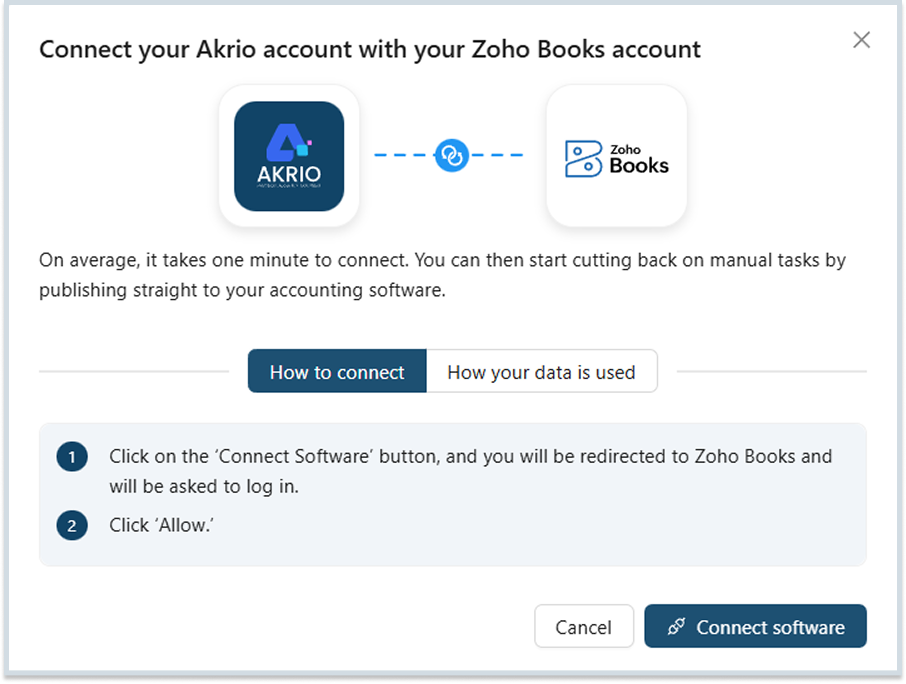
- Press the “Connect Software” button. This will redirect you to Zoho Books.
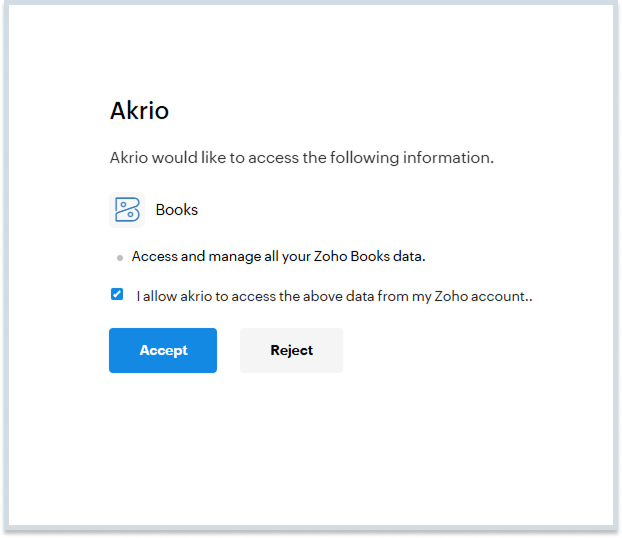
- Here, check the box to let us manage your Zoho Books data, and click “Accept”.
- Next, you will be redirected back to Akrio to select the organisation you wish to connect Zoho Books to.
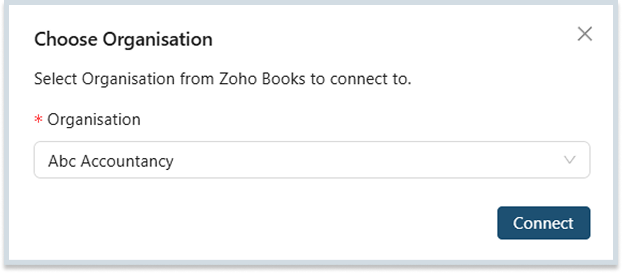
- Click “Connect”.

- If done successfully, you will be connected and see the integration settings page.
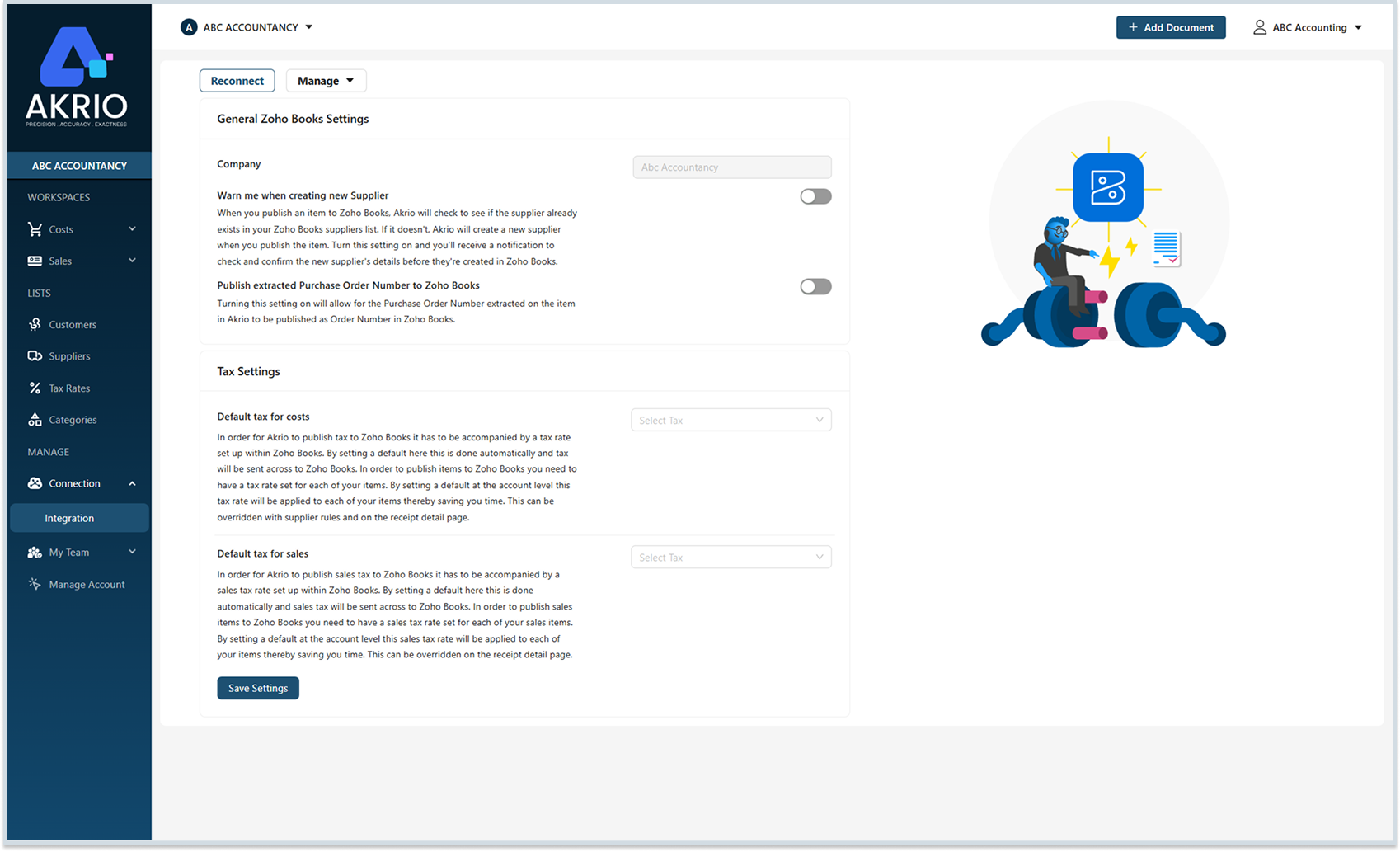
Note: If you encounter a connection error, click Reconnect to reauthorise and refresh the integration.
Managing Zoho Books Settings in Akrio
Once you have successfully integrated Akrio with Zoho Books, you can configure specific settings to ensure your data is transferred accurately and efficiently. These settings allow you to control how taxes are applied to your costs and sales items.
To access these settings:
- Go to the Connection tab in the sidebar and select Integration.
- Locate your Zoho Books settings page.
General Zoho Books Settings
These settings control the operational behavior of the integration between Akrio and your Zoho Books organisation.
Company
This field displays the name of the Zoho Books organisation currently connected to your Akrio account (e.g., Abc Accountancy). Verify that this is the correct organisation you wish to sync data with.

Tax Settings
Configuring default tax rates is crucial for seamless publishing. Akrio requires a tax rate to be associated with every item sent to Zoho Books. Setting defaults here saves your time by applying a standard rate to all items, which you can override later if needed.
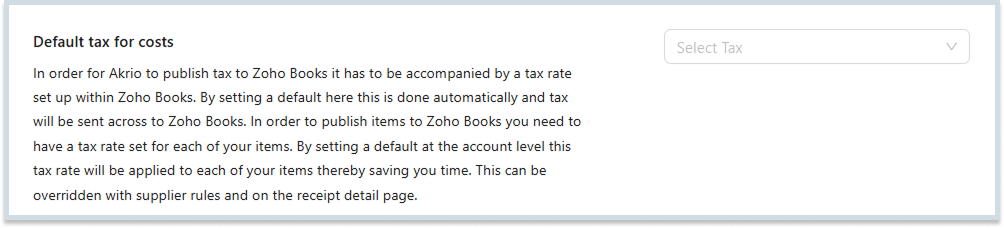
Default tax for costs
For Akrio to publish tax data for expenses, it must be matched with a valid tax rate from Zoho Books.
- How it works: By selecting a default tax rate here, Akrio automatically applies this rate to all cost items (receipts, bills).
- Overrides: This default serves as a fallback. You can still override this setting by creating specific Supplier Rules or by manually changing the tax rate on the individual receipt detail page before publishing.
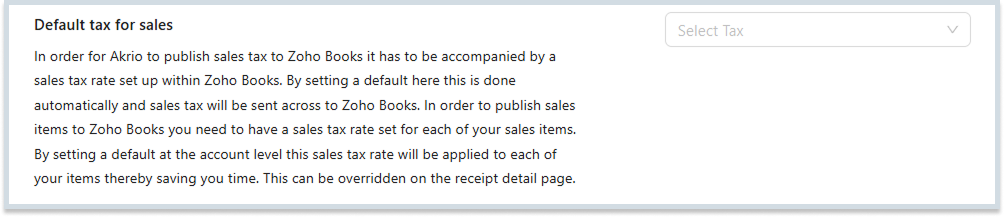
Default tax for sales
Similar to costs, sales items (invoices) must have a valid sales tax rate to be successfully published to Zoho Books.
- How it works: Select a default sales tax rate here. This rate will be automatically applied to all sales items processed in Akrio.
- Overrides: You can manually override this default rate on the specific receipt detail page for individual sales items if a different tax rate applies.
Once you have configured these parameters to your preferences, ensure you save your changes by clicking on the ‘Save Settings’ button to update the integration settings.
How to Reconnect
If you encounter a connection error or notice that data isn’t syncing properly, you can refresh the link between the two platforms.
- Go to the Connection tab in the sidebar and select Integration.
- Navigate to the Zoho Books settings page
- The Reconnect button is located directly above the General Zoho Books Settings section.

- Click Reconnect to re-authorize the link and clear any temporary connection errors.
Change Connection
The change connection feature allows you to switch your integrated application.
To do so
- Go to the Connection tab in the sidebar and select Integration.
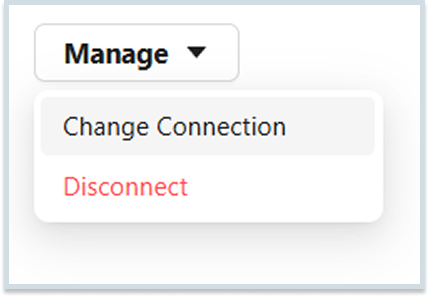
- Locate the Manage drop down at the top of the page and click Change Connection.
- Click on the ‘Connect’ button below the software to which you want to connect to and follow the steps.
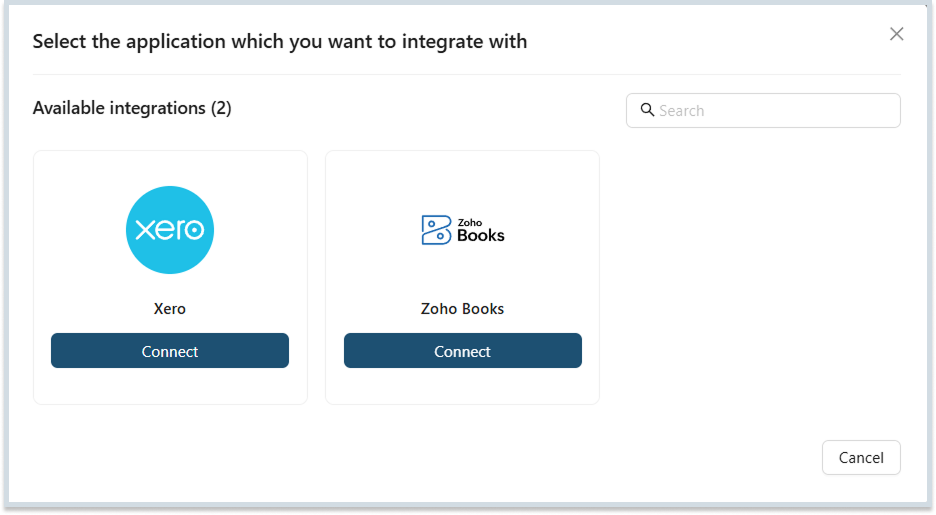
- Once redirected back to Akrio your connection is changed successfully.
You have successfully configured the Akrio and Zoho Books integration. You can return to these settings at any time to update your tax preferences or connection status.