Video Guide
Follow this video tutorial guide to see how you can Upload Costs & Sales Documents Via Akrio Mobile App.
Follow the below steps to upload Costs and Sales Documents using the Akrio mobile app on Android or iOS.
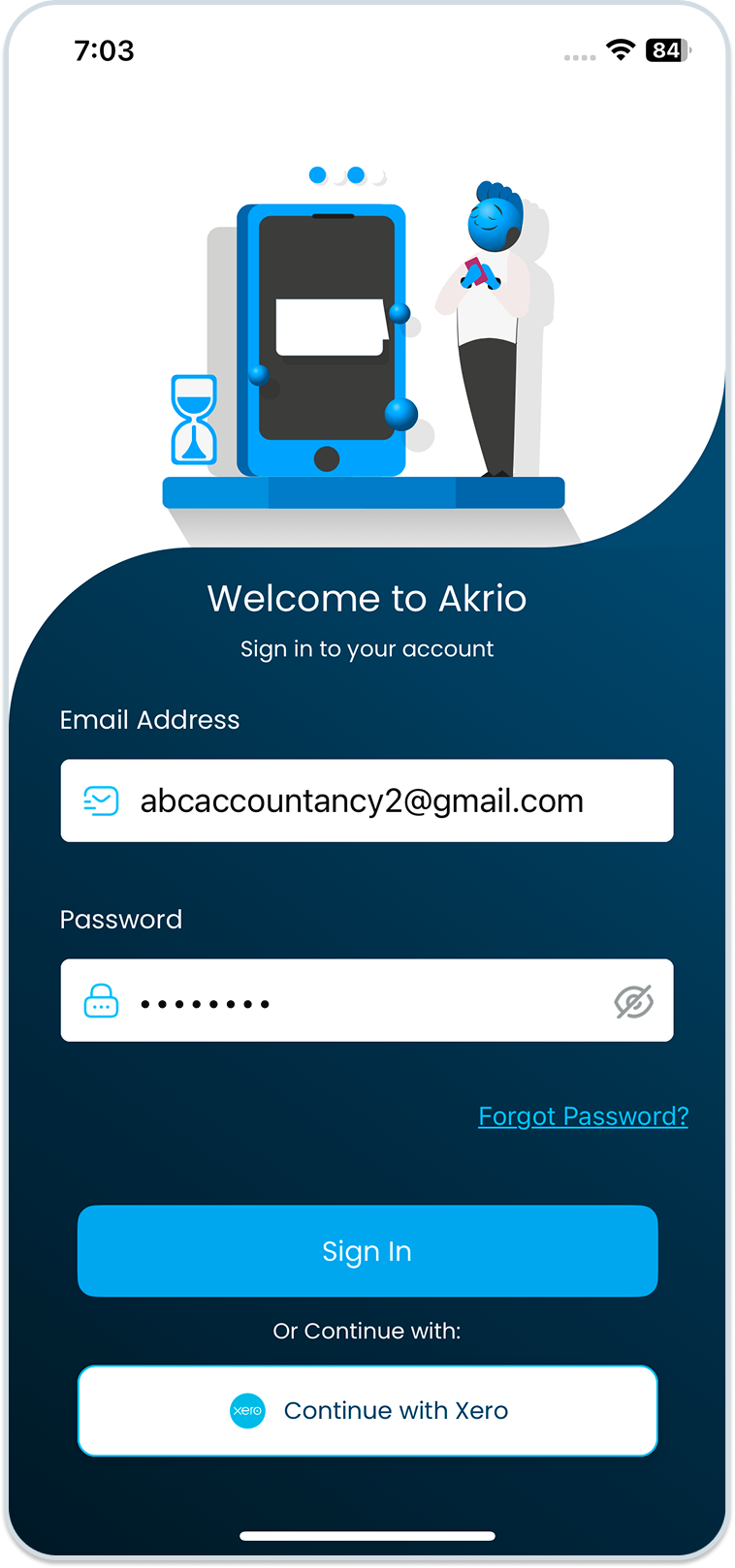
1. Open the Akrio mobile app and sign in with your email address and password.
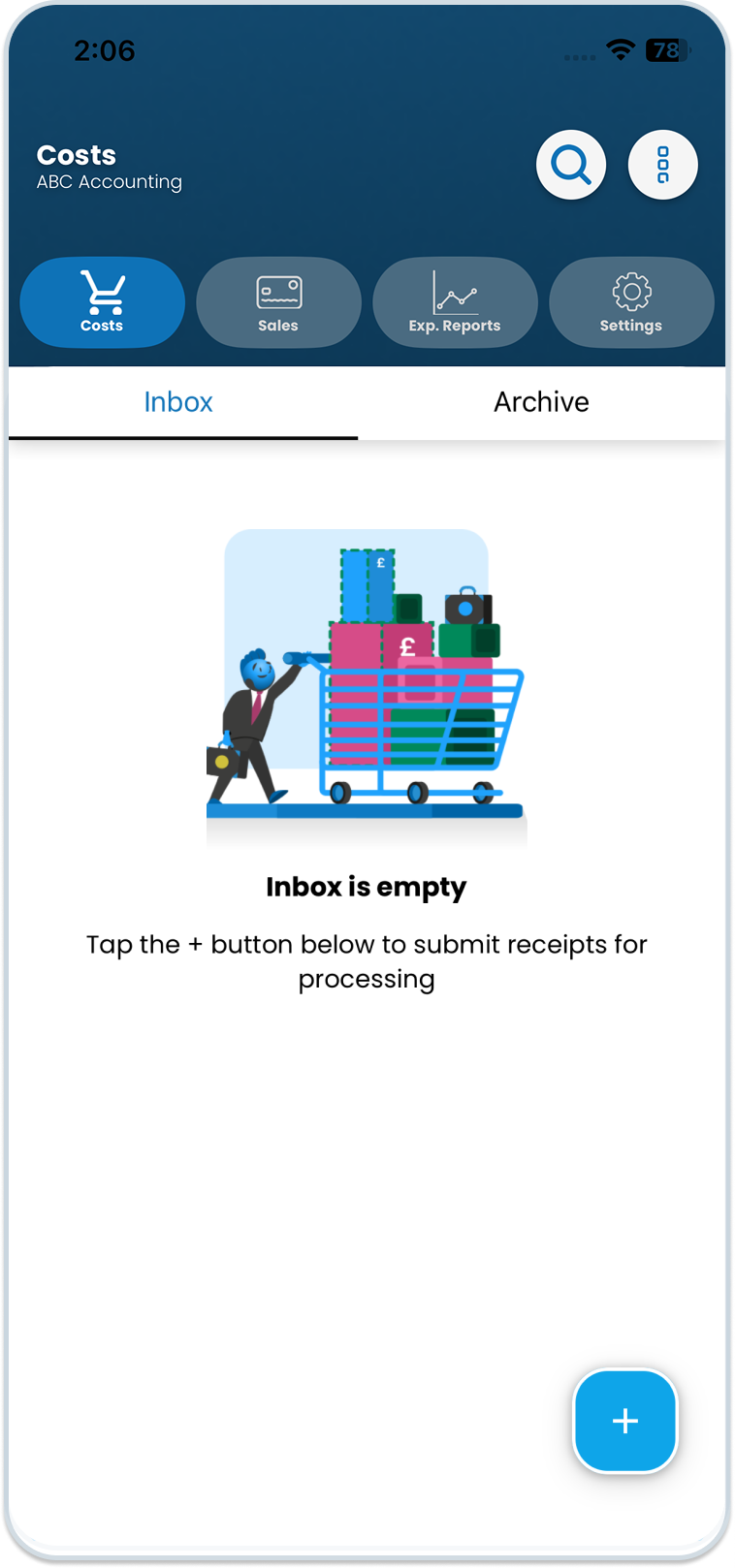
- Choose Costs or Sales inbox, whichever is applicable.
- To capture documents, you will need to open your device’s camera function. You can do this by tapping the blue + button at the bottom right corner of your screen.
- (If you haven’t uploaded any documents yet, the Inbox will appear empty, as shown below).
- You can select the document type—either Cost or Sales—from the bottom right corner.

- You can capture single, multiple, or combined documents by selecting the appropriate option at the bottom of the screen.
- Single documents – This mode captures a single document when all the information is displayed on one page.
- Multiple documents – Use this mode to capture more than one document. Akrio will automatically separate each photo into individual items.
- Combine: You can use the combine feature to capture long or double-sided receipts. First, you take a snap of one side or half, then take the second picture. Akrio will combine both images into one long receipt.
Capture a Single document
- Capture a Single document by tapping on the camera icon.

- Select category, if you want to assign, otherwise you can also assign or change if from document details page.
- Submit a Single document by tapping the green ‘Submit‘ button at the bottom.
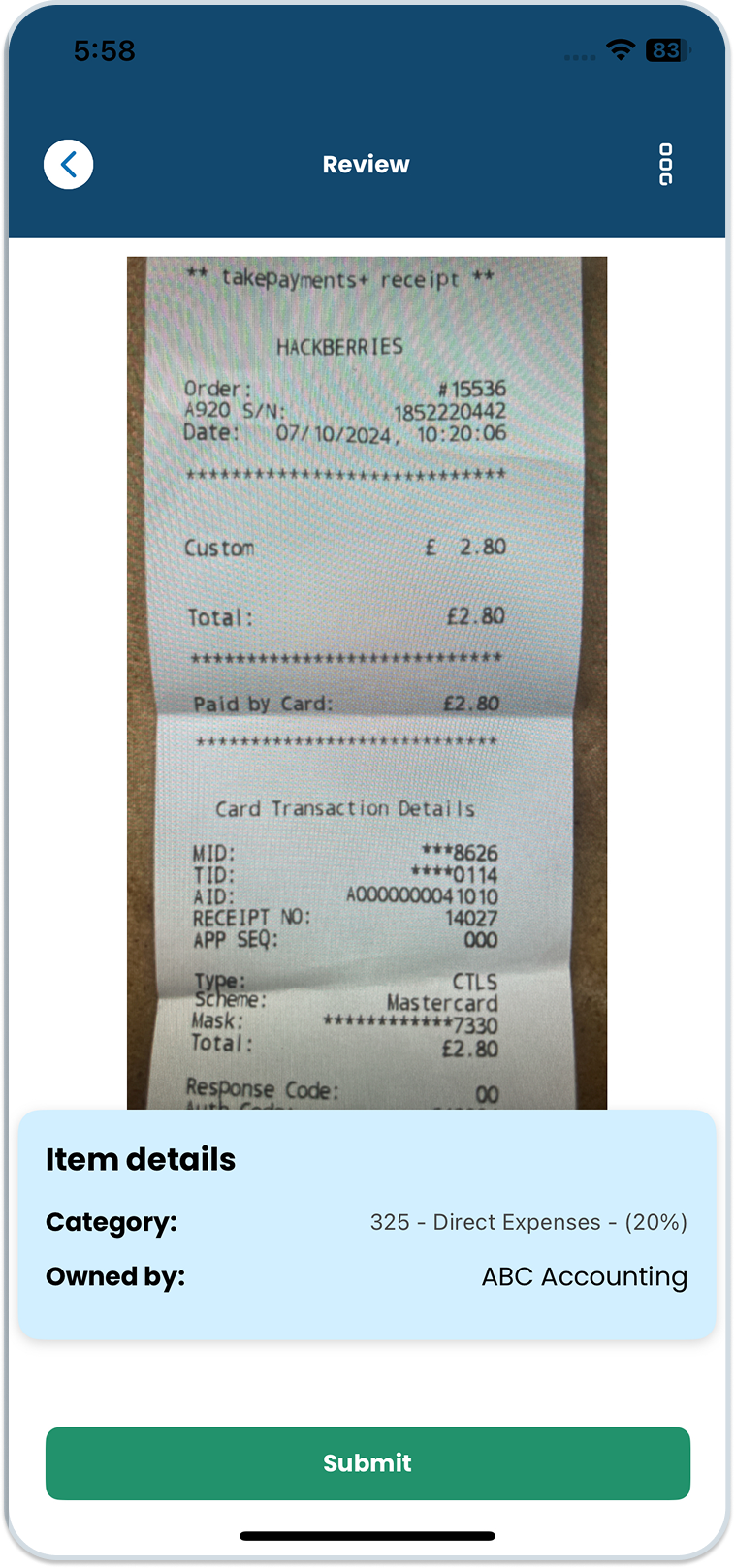
Note: You can also retake the image by clicking on the top right three dots and selecting the retake option from the dropdown
Capture Multiple documents
- Capture your first document by tapping on the camera icon.

- Capture your second document by tapping the camera icon and repeat the process for the remaining documents as needed.

- You can use the reorder option to arrange your document.
- Tap ‘Done’ after rearranging bills.

- Review all documents by tapping on the ‘Review‘ button.
- Select category if you want to add.
- Submit all documents by tapping the green ‘Submit All‘ button at the bottom.
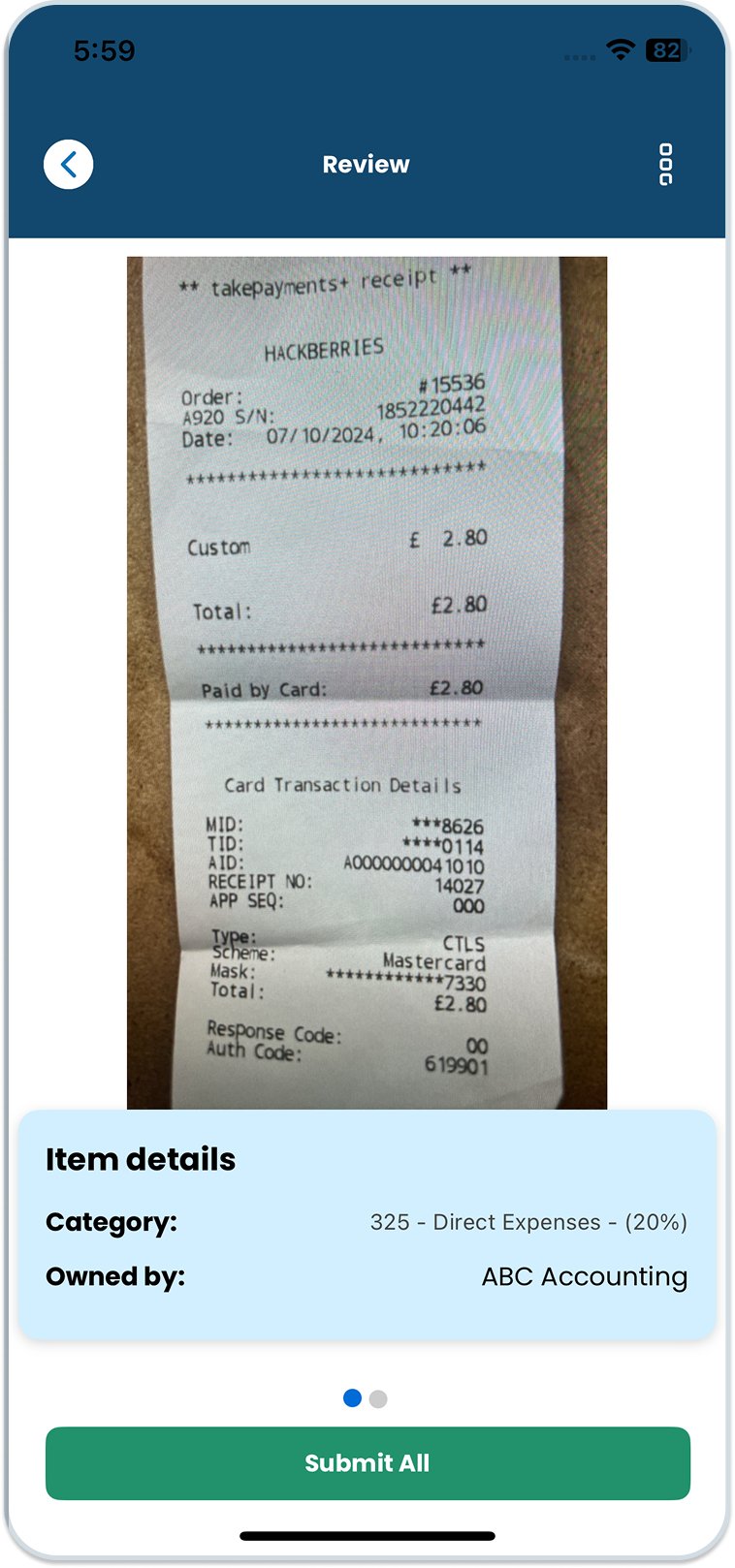
For combined documents
- Capture your first-side or first portion of document by tapping on the camera icon.

- Capture your second-side or second portion of document by tapping the camera icon and repeat the process for the remaining document as needed.

- You can use the reorder option on the top to reorder your receipt.
- Tap ‘Done’ after rearranging bills.

- Now, review all documents by tapping on the ‘Review‘ button.
- Submit all documents by tapping the green ‘Submit All‘ button at the bottom.
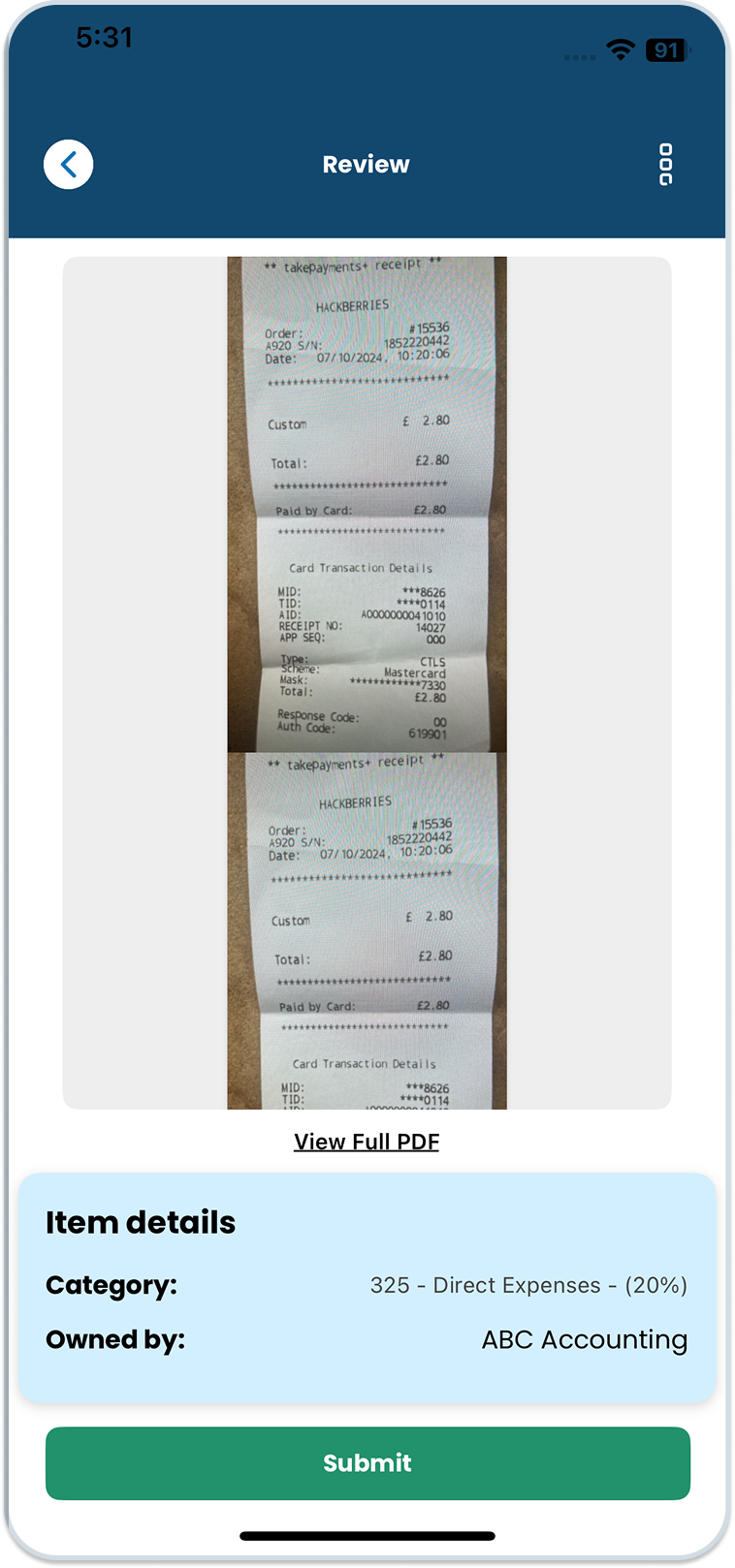
Note: Your document will move to ‘In Processing’ for extraction. Once the extraction is complete, it will appear in your inbox for further use.
Was this helpful?
Thanks for your feedback!