Video Guide
Follow this video tutorial guide to see how to manage line items in Akrio.
This page explains how to use the Line Items feature to split a single receipt, bill, or invoice across multiple categories within Akrio.
How to split an item using Line Items:
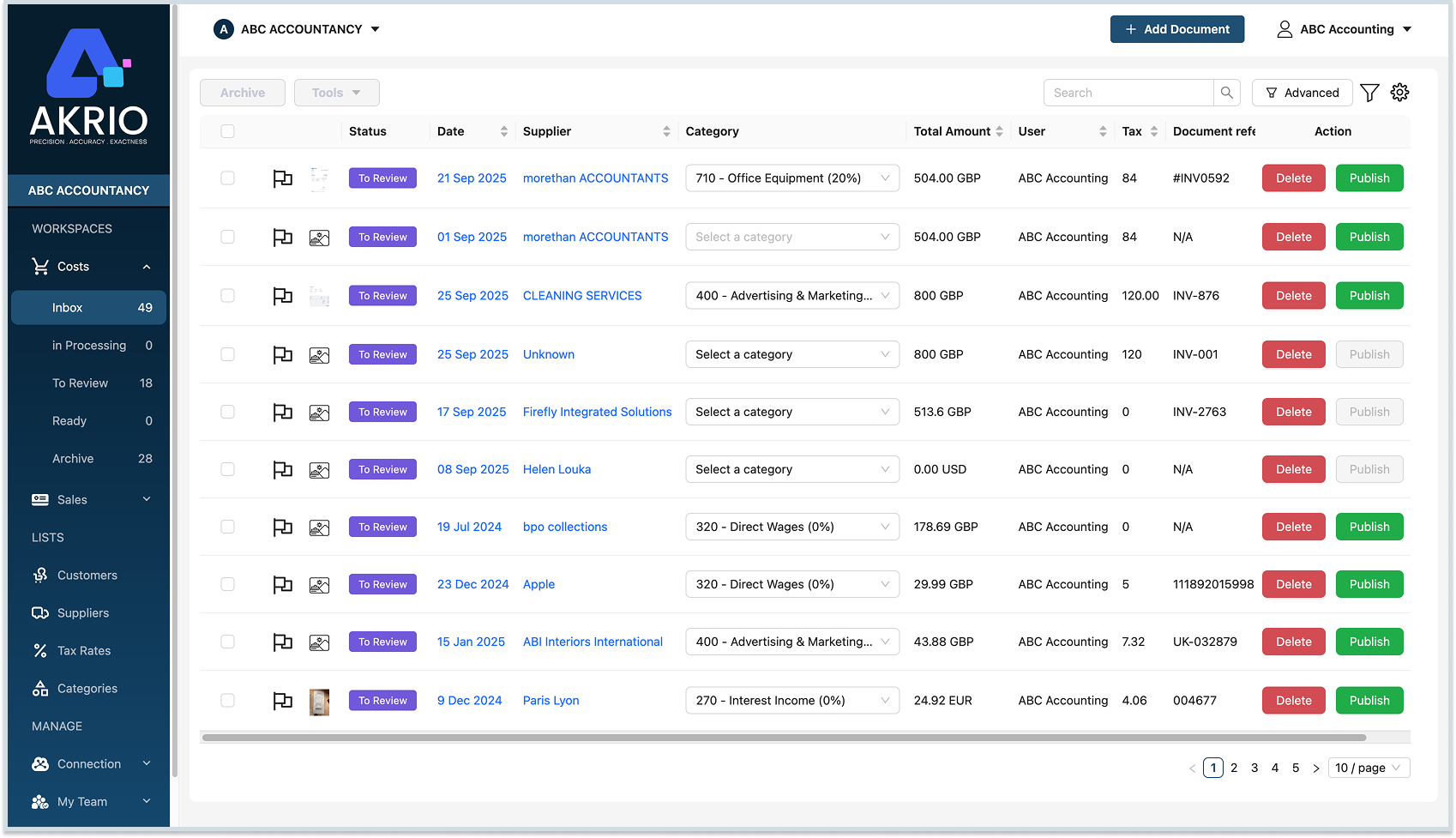
- Navigate to your Costs or Sales Item and click on the invoice or receipt you wish to edit.
- On the Item Details page, scroll down to find and click the “Create line items” button.
- On the Line Item details page,a line item has already been generated for you.

- Enter the details for the first line item, such as description, amount, tax rate and category.

- To add more lines, click “+ Add new line item “and repeat the process.
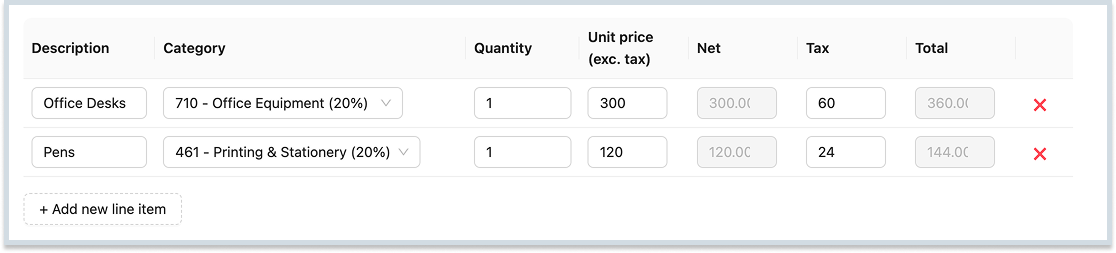
This allows you to break down the total cost into different charges as needed.
For example, if an invoice contains charges for both “Stationery” and “Computer Equipment”, you can create a separate line item for each to categorise them correctly.
- Once you have entered all the necessary line items and the totals match, click “Done”.

The individual line items will now be displayed on the Item Details page. You can make further adjustments by clicking the “Edit line items” button at any time.
Was this helpful?
Thanks for your feedback!