Video Guide
Follow this video tutorial guide to see how to edit user settings.
In Akrio, you can edit your own passwords and general information in User Settings.
- Go to the right side of the screen, locate your name and hover over it.
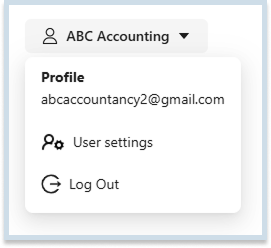
- Click User Settings to view the settings page.
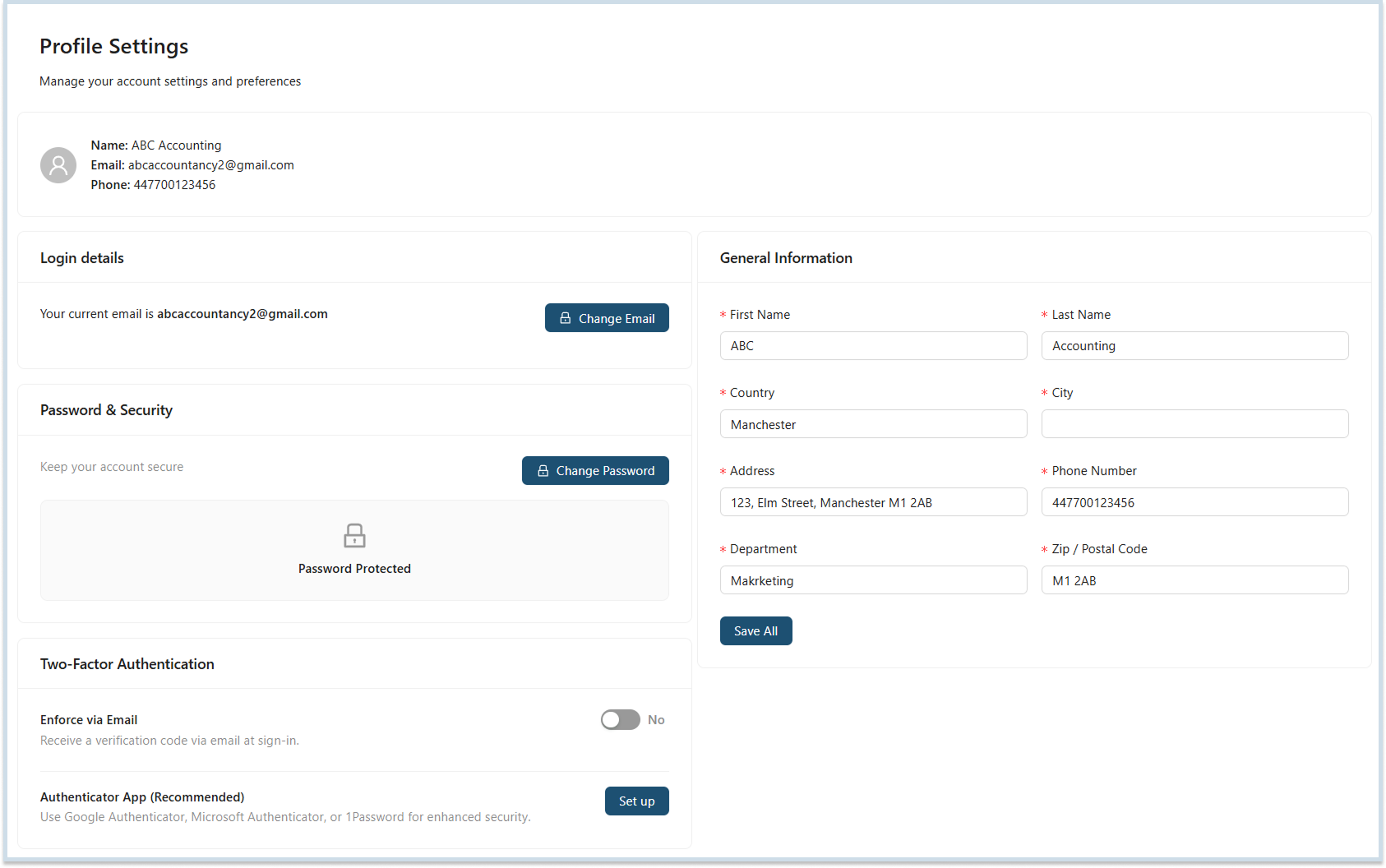
Note: Your settings are segregated into two sections, Profile and General Information.
Profile Settings
Change Password
To change your profile password:
- Enter your current and new passwords, then confirm the password.
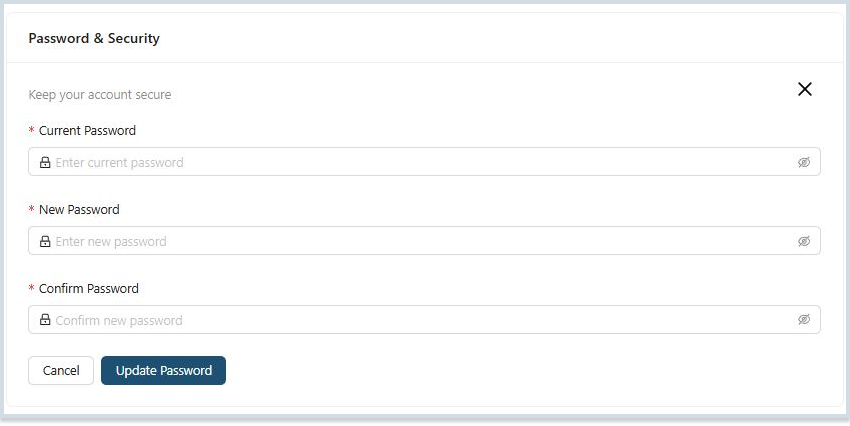
- Once you enter all three fields, click Save to make changes.
General Information
Under the General Information section, you can edit details related to your Akrio account. To edit your general information
- Navigate to the right panel of user Settings.
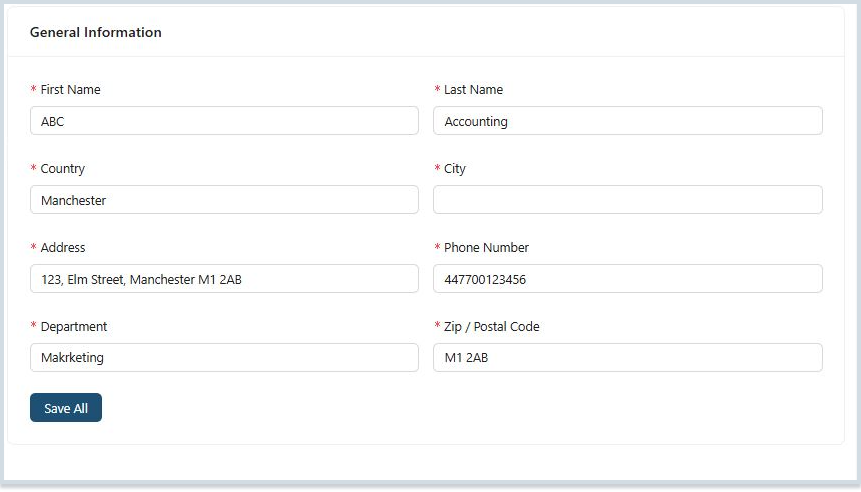
- Here, you can edit your basic information, like name, address, and contact details.
- You can also edit your Department name and Organisation.
- Once you are done making edits, click Save All to make changes.

Note: Once you make all the changes to your user settings, your new details will be applied immediately.
Was this helpful?
Thanks for your feedback!