Video Guide
Follow this video tutorial guide to see how to use advance date filter settings in Akrio.
This guide explains how to use the Advanced settings to locate specific items within your Costs or Sales items to filter them.
How to filter items by date:
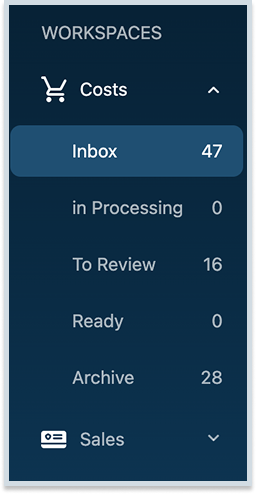
- Navigate to your Costs or Sales inbox.
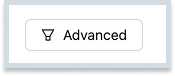
- Click on the Advanced button, located near the top right of the item list.
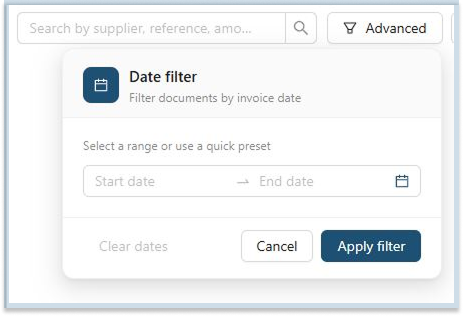
- The filter options will appear. To filter by date, you will see two fields: Start Date and End Date.
- Click on the Start Date field and select the beginning date for your filter range from the calendar pop-up.
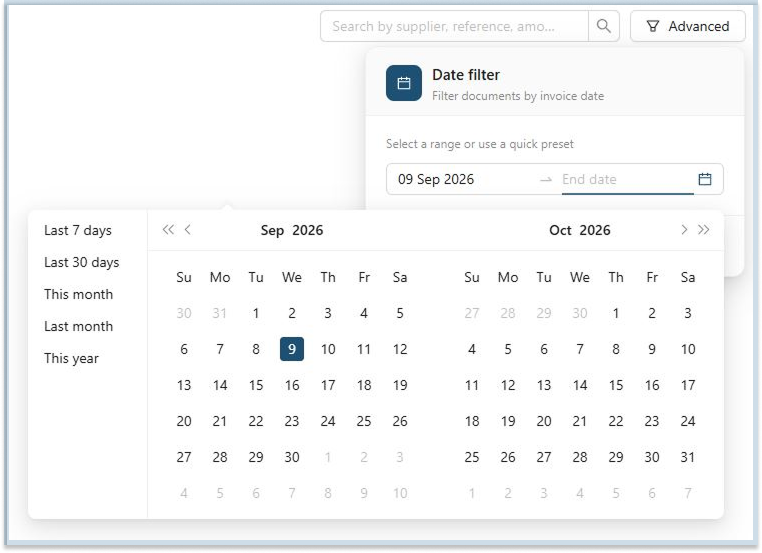
- Next, click on the End Date field and select the end date for your filter range.
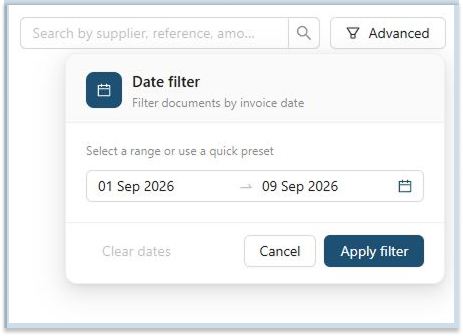
- Once you have set both the start and end dates, click ‘Apply filters’.
- The inbox will update to show only the items that fall within that specific period.
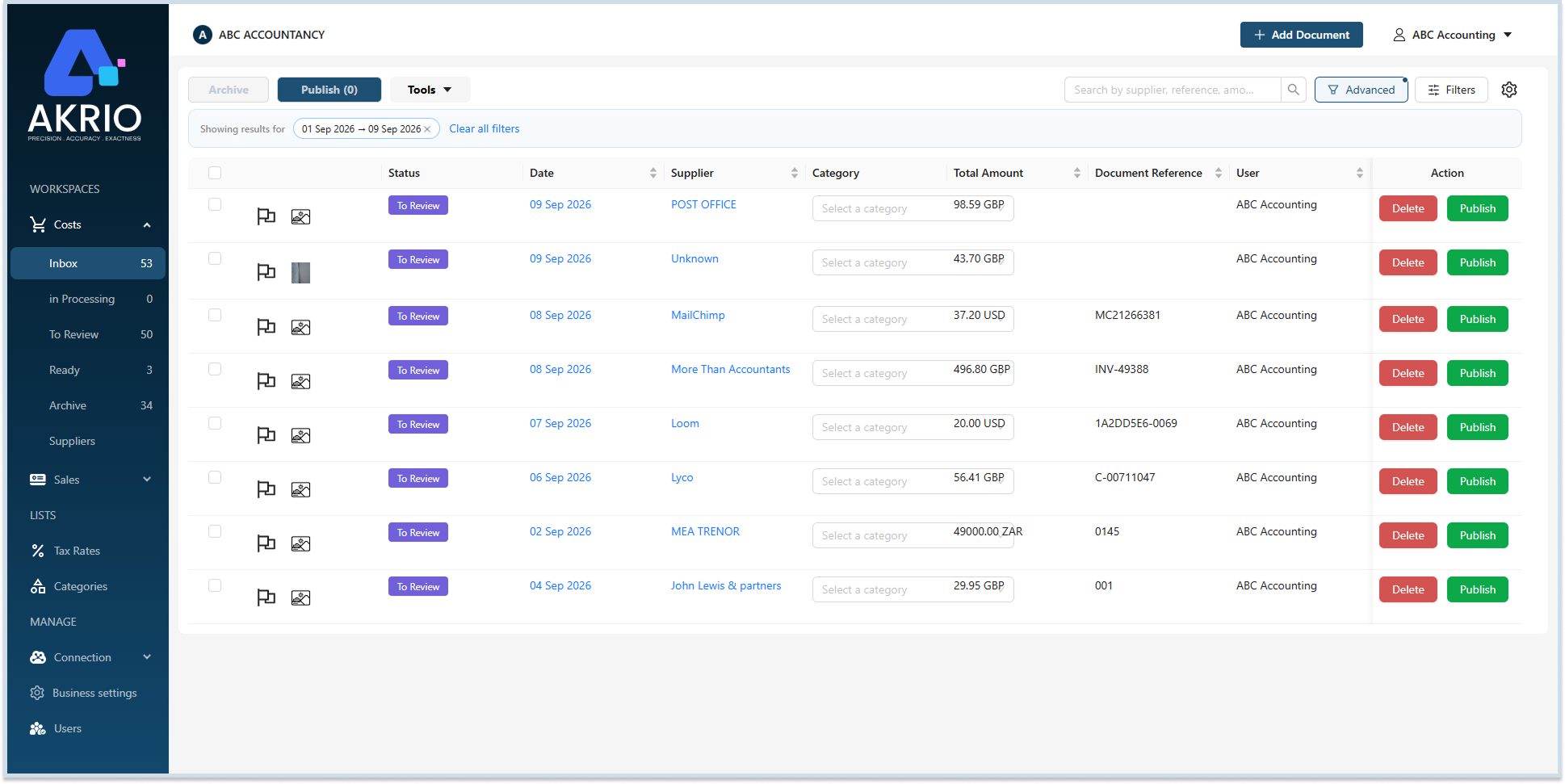
You can use the ‘Clear all filters’ button at any time to return to the default view of all your items.
Was this helpful?
Thanks for your feedback!