Video Guide
Follow this video tutorial guide to see how to add users in Akrio.
You can quickly grow your team on Akrio by adding new members to your account. If someone is already part of your team, simply invite them to join. Here’s a quick guide on how to add and manage team members:
How to Send an Invitation to an Existing User
How to Suspend a User’s Access
How to Add a User
To add a new user to your Akrio account, follow the simple steps outlined in the section below:
- Navigate to the Manage section on the sidebar menu.
- Click on Users.
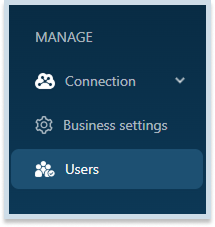
- Click the Add a User button to add a single user. To add multiple users in bulk, follow these instructions.

Add User Details
- Fill out the details for the person you want to invite to Akrio.
- Skip Invitation (Optional):
If you select Skip Invitation, a user will be created. They will have access to submit. documents via their unique email address and can also be assigned as document owners. However, they cannot access the Akrio platform via mobile or web apps until invited.
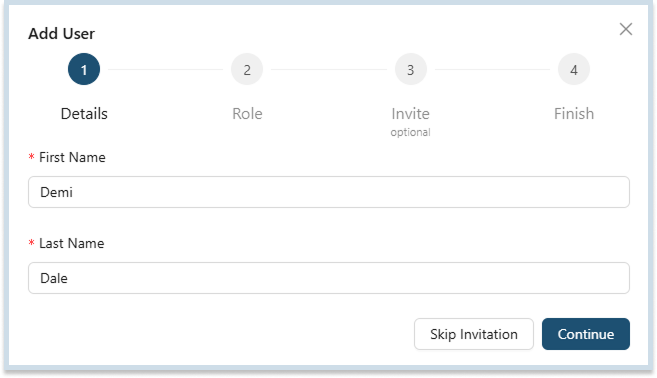
- Send Invitation for Full Access:
If you want the user to have complete visibility of transaction data and access to all submission methods via web and mobile, enter their name and email address, then click Continue.
Assigning User Privileges
- You can choose the user’s access level—whether they should have Admin User, Expense Approver, or Basic User privileges.
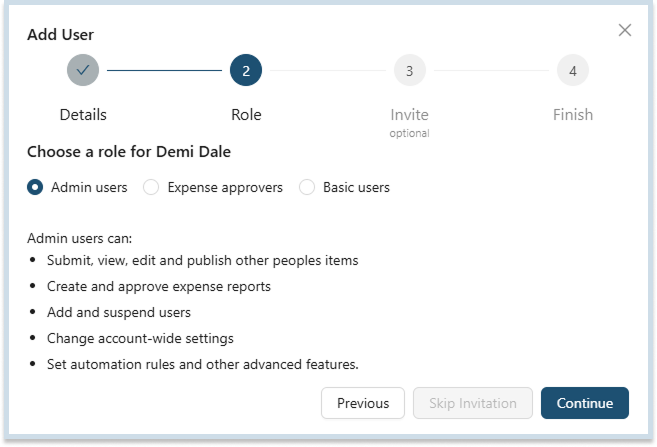
- Optionally, customise any extra access options based on the user’s role.
Sending the Invitation
- You can invite your new team member via email and/or SMS by entering their email address and/or phone number respectively.
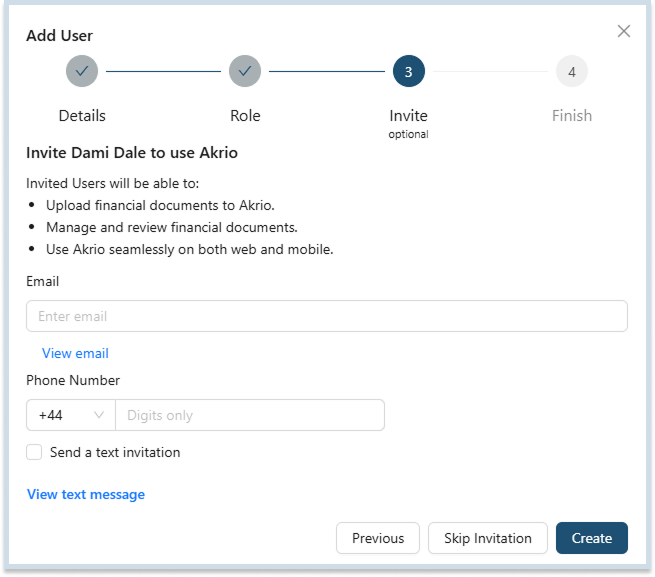
- Once ready, click Create to send the invitation, it will be added to your user lists.
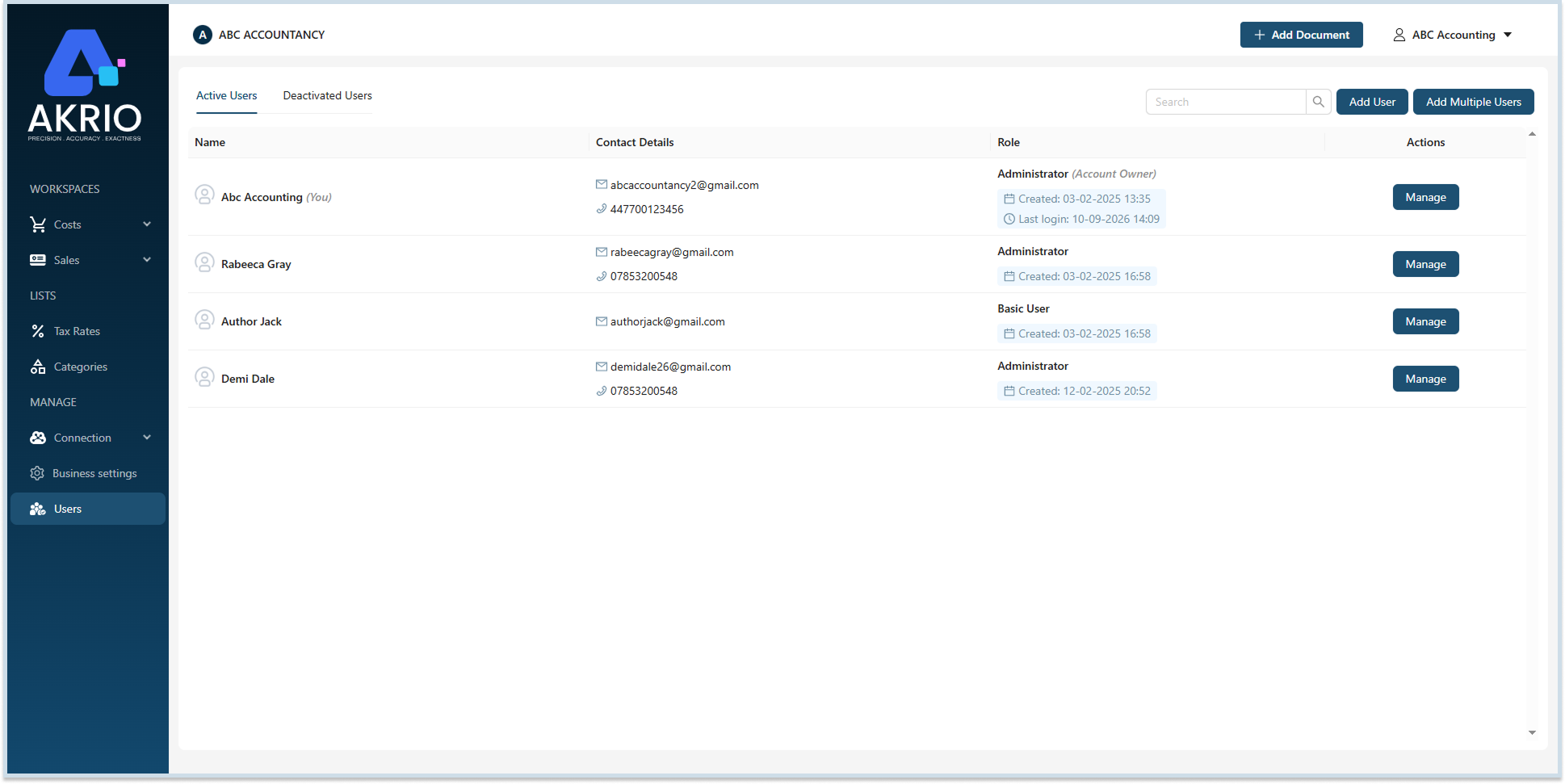
Note: The user will receive an invite to join your team via email or SMS.
Manage Users
After adding team members, you’ll have the flexibility to assign each specific access level. Every role comes with tailored permissions, ensuring that the right people have the right level of control. You can edit their details, suspend and remove them as needed.
You can easily customise them anytime by following guides.
- Go to the Users page.
2. Scroll down to find the user you want to update.
3. Click the Manage button next to their name.
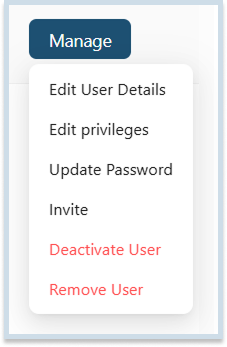
How to Edit User Details
- Under the Manage button, click on Edit User Details.
- Here, you will see a user editing section.
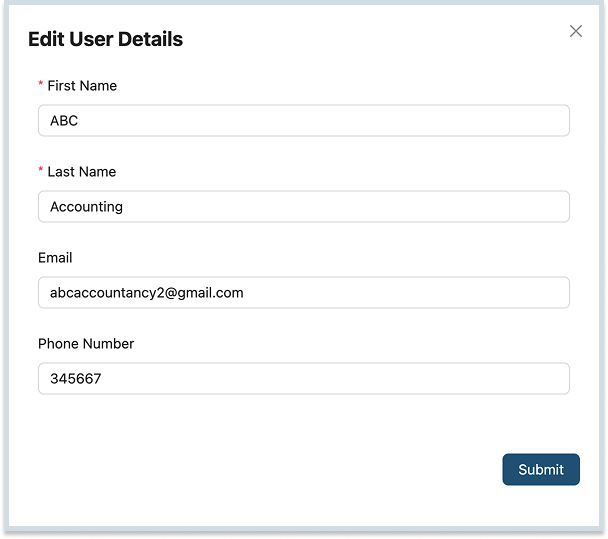
- Make the desired changes to user details, and click Submit.

How to Edit User Privileges
- Go to Users on the main menu.
- Choose the user you want to edit privileges of, and click Manage.
- Select Edit User Privileges to adjust their access level and permissions.
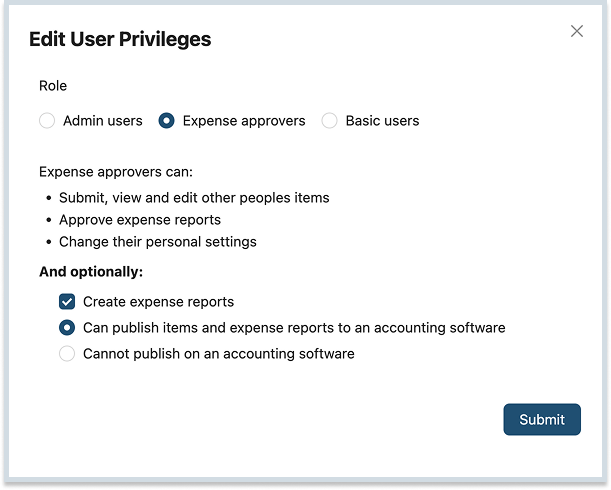
- Select the role you want to assign the user and click Submit.
How to Update User Password
- Go to Users on the main menu.
- To update the user password, click Update Password under the Manage.
- A dialog box for Update Password will appear; enter New Password and Confirm Password.
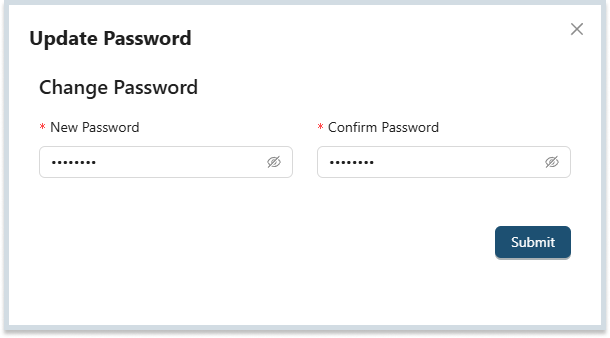
- Once you have updated the password, click Submit.
How to Send an Invitation to an Existing Users
To send an invitation to an existing user:
- Go to Users page on the main menu.
- Navigate user lists, and click Manage next to the user you need to send an invitation.
- Under the manage drop-down, click Invite.
- Now, an invite User popup will appear.
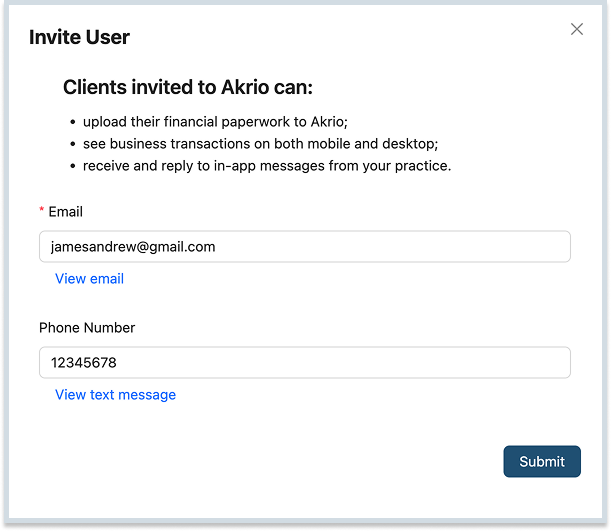
5. In the invitation pop-up, enter the user’s email and phone number.
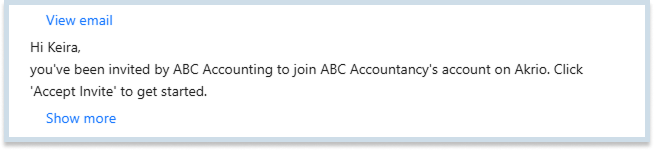
6. You can view the email that will be sent to the invited user by clicking “View email”.
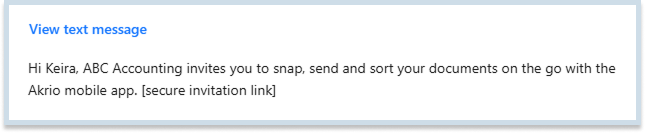
7. And to view the text message that will be sent to the invited user by clicking “View Text Message.”
8. After providing the email and phone number of the user, Click Submit to send the invitation.
How to Suspend a User’s Access
To suspend a user in your team:
- Go to Users on the main menu.
- Click Manage next to the user you want to suspend.
- Click Suspend User, and your selected user will be suspended and added to the suspended users section.
How to Remove a User
To remove a User from your team:
- Go to Users on the main menu.
- Click Manage next to the user you want to remove.
Click Remove User, and your selected user will be removed from Akrio.